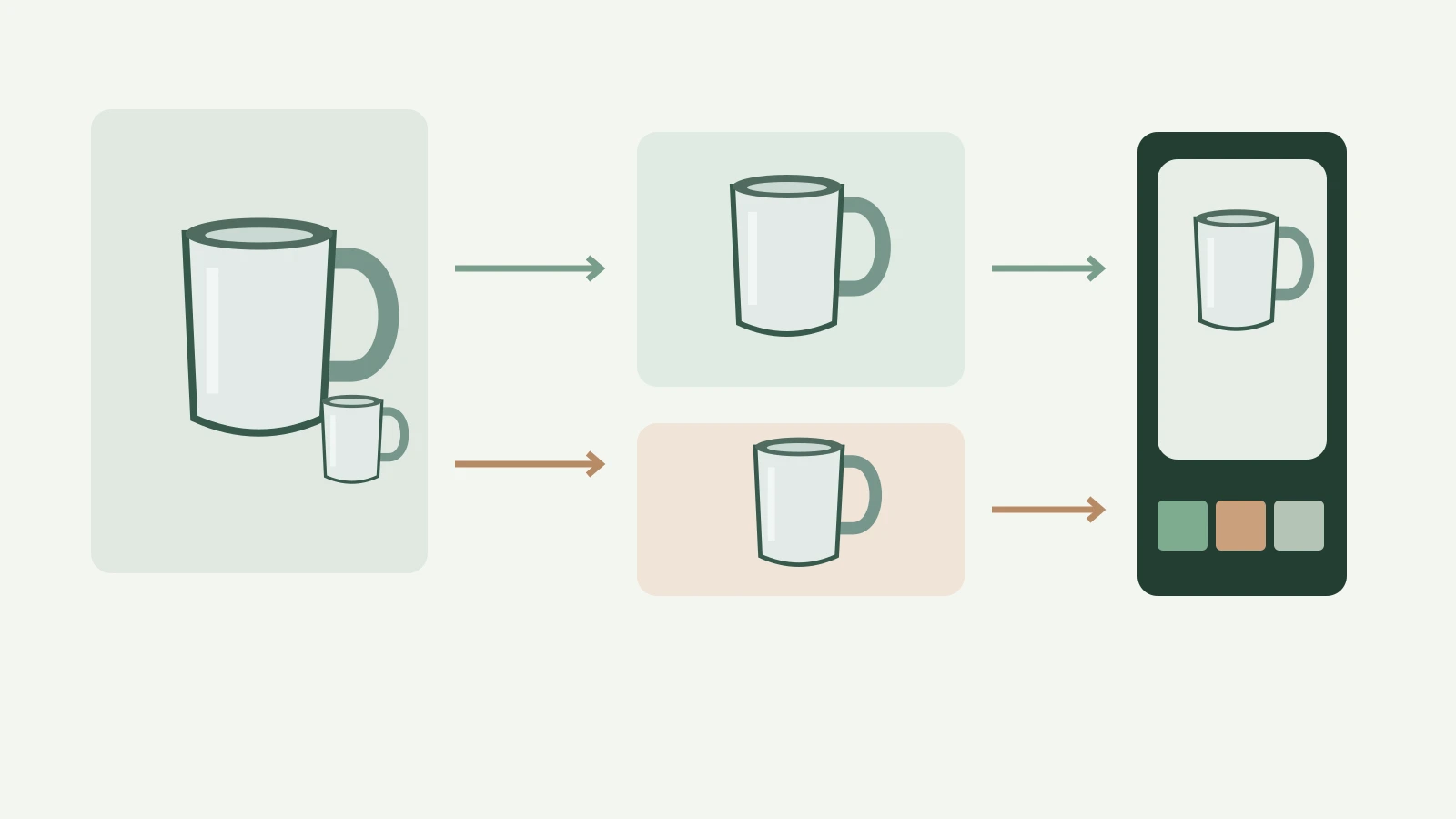
For a product ad, start with the inputs and the shots you need. Seedance 2.5 exposes creation, editing, extension, and first-and-last-frame workflows in Veemo, with a selectable 4–30-second duration and 480p or 720p output. Veo 3.1 exposes text, image, and reference workflows, with 720p and 1080p choices in the forms checked for this guide. Use a shared 720p brief when comparing them. Keep product geometry and usable footage ahead of impressive camera motion. The Seedance 2.5 vs Veo 3.1 decision below compares observed controls and credit estimates; it does not claim an output-quality winner.
Settings and estimates checked in Veemo on October 24, 2026. No paid generation was submitted for this article. The mug example, prompts, and diagrams are an original production exercise, not a completed client campaign or a model benchmark.
1. Choose the workflow that matches your starting material
A useful Seedance 2.5 vs Veo 3.1 comparison begins with what you already own. A product photograph, a finished clip that needs another ending, and an empty storyboard are different starting points. Choosing a model before identifying that difference can make you pay to recreate material you already have.
| Your starting point | First workflow to inspect | What to decide before generating |
|---|---|---|
| Two approved product photographs | Seedance creation or Veo reference-to-video | Which views describe the same exact product, and what motion is needed? |
| A concept with no fixed product identity | Either text-to-video path | Is this exploratory scenery, or must the product match a real item? |
| An existing clip needing a targeted change | Seedance editing | What should change, and what must remain recognizable? |
| An existing ending needing more footage | An extension workflow | Where will the join occur, and how much of the continuation will survive the edit? |
| A defined opening and closing composition | A frame-guided workflow | Can the transition preserve the product between those two views? |
This table identifies relevant controls; it is not a promise that an output will pass review. For the rest of the guide, the task is a fictional travel-mug advertisement made from two authorized photographs. The deliverable is a 15-second vertical edit with three shots. Product claims, price, logo, and the final call to action are added in the editor from approved assets.
For Seedance 2.5 vs Veo 3.1, this narrower task gives you a practical question: which workflow produces the required shots with acceptable product fidelity and manageable revision work? It avoids judging an entire model from one attractive unrelated demonstration.
2. Match the brief before comparing the settings
Use one front view and one three-quarter view of the same plain matte stainless-steel mug. Keep the lid, handle, color, and proportions consistent across both images. A photograph of a different lid introduces a disagreement that a prompt cannot reliably resolve. Remove irrelevant packaging or background props when you prepare the source images, while preserving the product itself.
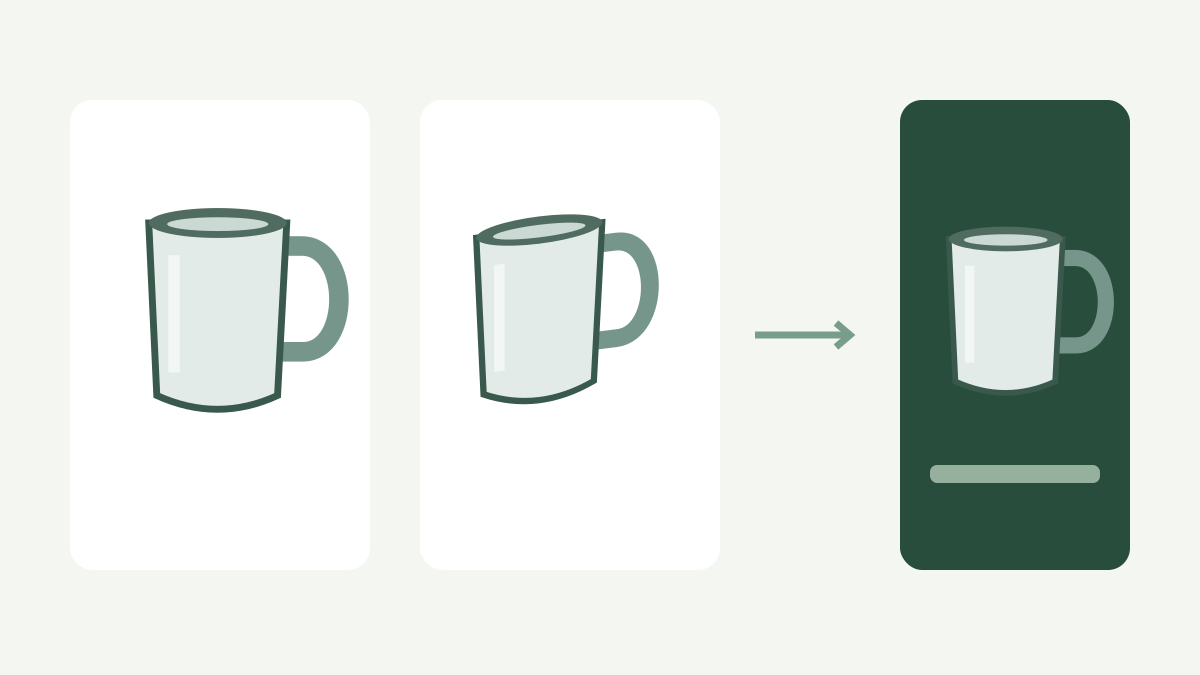
Set the same delivery ratio, intended framing, camera instruction, and evaluation rules. Use 9:16 explicitly for the vertical ad instead of relying on an automatic ratio choice. Start at the shared 720p setting. Comparing one model's lower-resolution draft with another model's larger output confuses resolution with other differences.
Identical prompts do not make every mode identical. Veemo's Veo reference form accepts one to three reference images; Seedance creation exposes a broader reference workflow. For this exercise, use the same two stills where supported. Record a mode difference instead of quietly adding a video reference to one side. A Seedance 2.5 vs Veo 3.1 comparison becomes hard to interpret if the source material changes between attempts.
Keep audio outside the first visual comparison. You can later assess generated audio as its own requirement, with the same script or sound brief. For the initial product review, an impressive soundtrack should not distract from a handle that changes shape. Decide the voice-over, music, and final audio mix after selecting footage that depicts the product accurately.
3. Turn fifteen seconds into three specific shots
Do not ask for every selling point, three camera moves, a product demonstration, and a finished end card in one prompt. Divide the edit into a reveal, a detail view, and a closing hold. Each shot has one job and a clear reason to be kept or rejected.

Shot A — product reveal. Use this proposed shared prompt:
A plain matte stainless-steel travel mug stands on a neutral studio table. Slow controlled camera push toward the mug. Keep its cylindrical silhouette, lid, handle and surface unchanged. Soft side light. No captions, logos, price text or people.
Shot B — material detail. Use:
Close view of the same plain matte stainless-steel travel mug. A small controlled camera move reveals the texture and lid seam. Preserve product geometry and color. Neutral studio setting with soft reflections. No captions, logos, people or invented mechanisms.
Shot C — closing hold. Use:
The same plain matte stainless-steel travel mug remains centered in a simple studio composition. Very subtle movement settles into a stable product view with clear empty space above. Preserve its shape, lid and handle. No generated letters, logos, prices or claims.
These are unexecuted prompts, ready to adapt to your own authorized product images. For Seedance 2.5 vs Veo 3.1, keep their product description and camera intention unchanged during the first comparison. A five-second selection is an editing goal, not a claim about a provider's fixed output duration. Record the actual downloaded clip length separately.
Leave handles around each chosen segment when possible so the editor can adjust a cut. If you need extra frames for a transition, include that requirement in the shot plan. A clip with exactly enough clean footage may leave no room to fix a cut that feels abrupt.
4. Compare the controls actually exposed in Veemo
The forms observed on October 24 expose the following choices. These are platform controls, not a complete list of everything each vendor offers through every product or API.
| Control | Seedance 2.5 creation | Veo 3.1 forms checked |
|---|---|---|
| Output resolution | 480p or 720p | 720p or 1080p |
| Duration control | Selectable 4–30 seconds | No duration selector in the checked text/reference forms |
| Visual input | Optional references in creation | Dedicated image and reference workflows; reference form accepts up to three images |
| Text-generation modes | Creation controls | Fast or Quality in the text form |
| Separate post-generation needs | Editing, extension, and frame-guided routes | Inspect the appropriate image, reference, or extension route for the task |
Do not transfer a switch from one form into another by assumption. The Veo text form's Fast/Quality selector is not shown in the checked reference form. Likewise, a resolution advertised in a vendor's documentation may not appear in the selected Veemo workflow. In Seedance 2.5 vs Veo 3.1, the current form is the practical place to choose settings and read the estimate before submitting.
Google's developer documentation states that specified Veo 3.1 Preview IDs in the Gemini API shut down on October 22, 2026. It separately points to GA models on Google's enterprise platform. Veemo's configured Veo implementation uses KIE's Veo route, which has separate documentation. The Gemini notice therefore does not establish that every Veo product or Veemo's provider route has stopped. Conversely, an accessible form and a provider documentation page do not prove a new generation has completed successfully. This guide makes no such test claim.
5. Budget by attempts and retained footage
The live forms checked for this Seedance 2.5 vs Veo 3.1 guide displayed the following estimates. Seedance examples use creation without a video input. Changing the workflow or adding a video can change the calculation; recheck the current estimate for your actual inputs.
| Configuration checked | Displayed credits for one request |
|---|---|
| Seedance creation, 5 seconds, 480p, no video input | 110 |
| Seedance creation, 5 seconds, 720p, no video input | 235 |
| Seedance creation, 15 seconds, 480p, no video input | 330 |
| Seedance creation, 15 seconds, 720p, no video input | 705 |
| Veo text, Fast, 720p | 40 |
| Veo text, Fast, 1080p | 50 |
| Veo text, Quality, 720p | 300 |
| Veo text, Quality, 1080p | 310 |
| Veo reference, 720p / 1080p | 40 / 50 |
The units matter. A Veo row is an estimate per request in that selected form; it is not a per-second rate. A Seedance row includes a specified duration. These numbers describe different request configurations and must not be presented as the cost of identical finished footage.
For a planning example, three separate five-second Seedance creation requests at 720p, with no video input, total 705 credits before any retries. Reserving one additional attempt for each shot makes that 1,410 credits. This is arithmetic for a proposed session, not an observed spend or a prediction that two attempts will be enough.
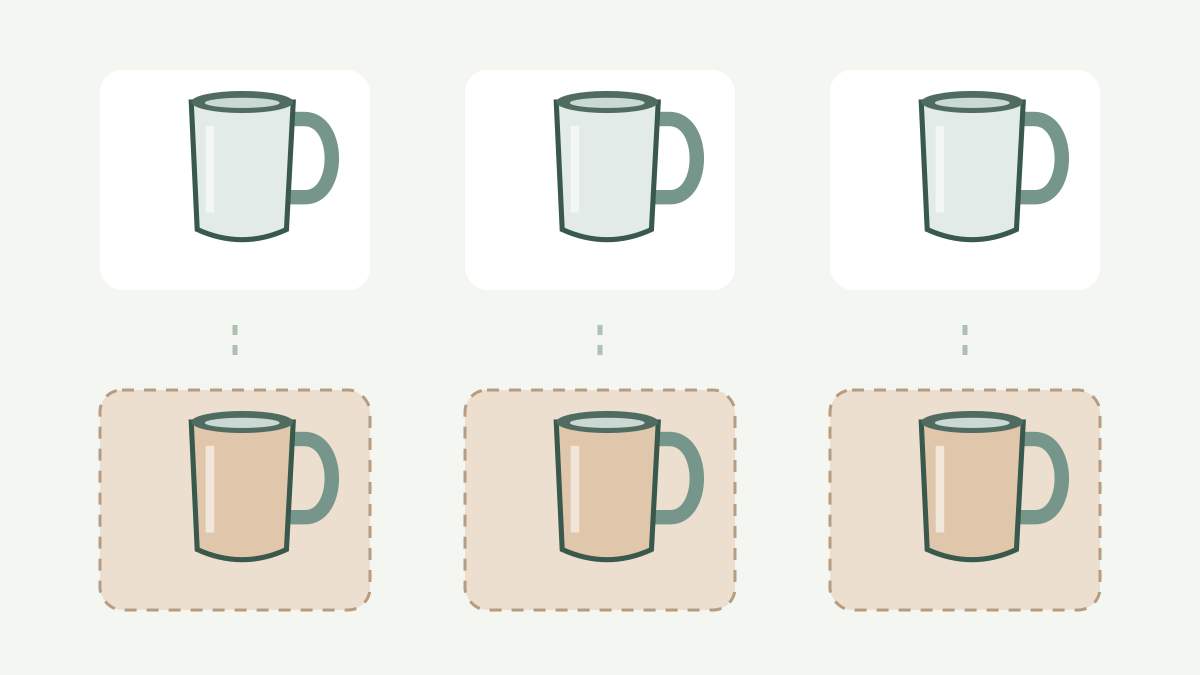
Three Veo reference requests at the observed 720p estimate total 120 credits before retries. That lower displayed request total does not establish the cost of obtaining the same fifteen acceptable seconds. Different output duration, rejected footage, and editing work can change the result. A Seedance 2.5 vs Veo 3.1 buying decision should keep the initial request allowance separate from the final delivery cost.
Once you have real outputs, calculate credits per retained second as total credits actually charged across the session divided by seconds accepted for the edit. Keep rejected attempts in the numerator. If no footage is accepted, report that outcome instead of inventing a useful cost-per-second figure. Record editing time separately. For dollar purchase examples and credit balances, use the Veemo video-ad budget guide and the current pricing page; do not convert an unrelated API dollar rate into Veemo credits.
6. Review product accuracy before cinematic polish
Watch each actual output at normal speed, then pause at the opening, the strongest camera movement, and the intended cut. Compare the product with the approved stills. Check the lid seam, handle attachment, wall profile, base, material, and color. A good-looking shot can still advertise a different object.

Use a simple session record:
| Record | Why it matters |
|---|---|
| Source files and prompt version | Identifies what the generation was asked to preserve |
| Mode, ratio, resolution, and estimate | Makes request differences visible |
| Actual duration and charged credits | Separates the form estimate from the completed task |
| Accepted start/end timecodes | Measures footage that can enter the final edit |
| Rejection reason | Directs the next revision instead of hiding failures |
| Editing minutes | Captures work that a request-price table misses |
For Seedance 2.5 vs Veo 3.1, product fidelity, camera adherence, temporal stability, and retained seconds should be separate observations. Do not combine them into a numerical ranking unless you define the scoring rules and have enough actual examples to support it. One excellent output can justify using that clip; it cannot establish a general success rate.
When a shot fails, change one variable. Reduce the camera move if the object deforms during movement. Simplify the background if reflections obscure the lid. Correct inconsistent source images before rewriting the entire prompt. Keep the rejected version so you can tell whether the change addressed the original problem.
7. Assemble the ad and handle the remaining work deliberately
Put the reveal, detail, and closing hold on a fifteen-second timeline. Match exposure and color across the accepted shots. Check continuity at each cut: the handle should not jump sides, the lid should not change design, and the product should not become a different color between views. Trim to the footage that supports the product story rather than keeping every generated second.
Add the approved logo, offer, price, and call to action as editable graphics. Keep them clear of the product and the destination platform's interface overlays. Review the export at phone size. A message that is readable in the editing monitor may become illegible in a vertical feed.
Seedance 2.5 vs Veo 3.1 also involves the next revision. If you already have the right clip and need a specific modification or a continuation, inspect that workflow before generating a replacement from scratch. The existing-footage editing guide and product-demo extension guide cover those separate tasks. Continuation does not guarantee a seamless join; review the last original frames and first new frames together.
Use music, voice, and product claims you have permission and evidence to use. Do not imply that generated imagery demonstrates leak resistance, insulation time, or another physical performance claim. The client-ad handoff guide explains how to record source permissions and agree on delivery files. A model choice does not replace that production work.
8. Use official demonstrations for ideas, then make a scoped choice
The official Dreamina launch video is useful for exploring the presentation of Seedance 2.5 and deciding which kind of camera or scene idea you want to investigate. Treat a demonstration as a source of creative direction. It does not reveal how many attempts were rejected, how much post-production was used, or what the same prompt would produce through your chosen Veemo workflow. Keep a note of the specific movement you want to borrow as an instruction, then translate it into one bounded shot in your own brief. The three prompts above intentionally keep the scene and movement modest so product accuracy can be reviewed independently. The video is an external embed, not an asset license, a Veemo test result, or the comparison footage for this article.
For your Seedance 2.5 vs Veo 3.1 decision, select the workflow that accepts your material and exposes the controls needed for the next shot. Set a request allowance, keep every attempt, and judge the footage against the same product brief. Use Seedance's relevant editing or frame controls when those address an existing asset; inspect Veo's image or reference route when that matches the source photographs. This guide has not measured a quality winner, speed winner, or success rate.
Prepare the two product views and the reveal prompt before opening the generator. Compare the current settings in Seedance 2.5 and Veo 3.1, then make one clearly scoped production decision. The useful outcome is a deliverable ad with an accurate product and a known revision budget.
Sources and method
This Seedance 2.5 vs Veo 3.1 guide combines observed Veemo controls and live form estimates with ByteDance's Seedance page, Google's Gemini Veo documentation, Google's separate GA Veo model documentation, and KIE's documentation for the Veo route used by the implementation. The request math is illustrative. No matched outputs, elapsed generation times, paid tasks, conversion results, or search-volume estimates are reported. Recheck the selected form's estimate and relevant provider status before committing a production budget.