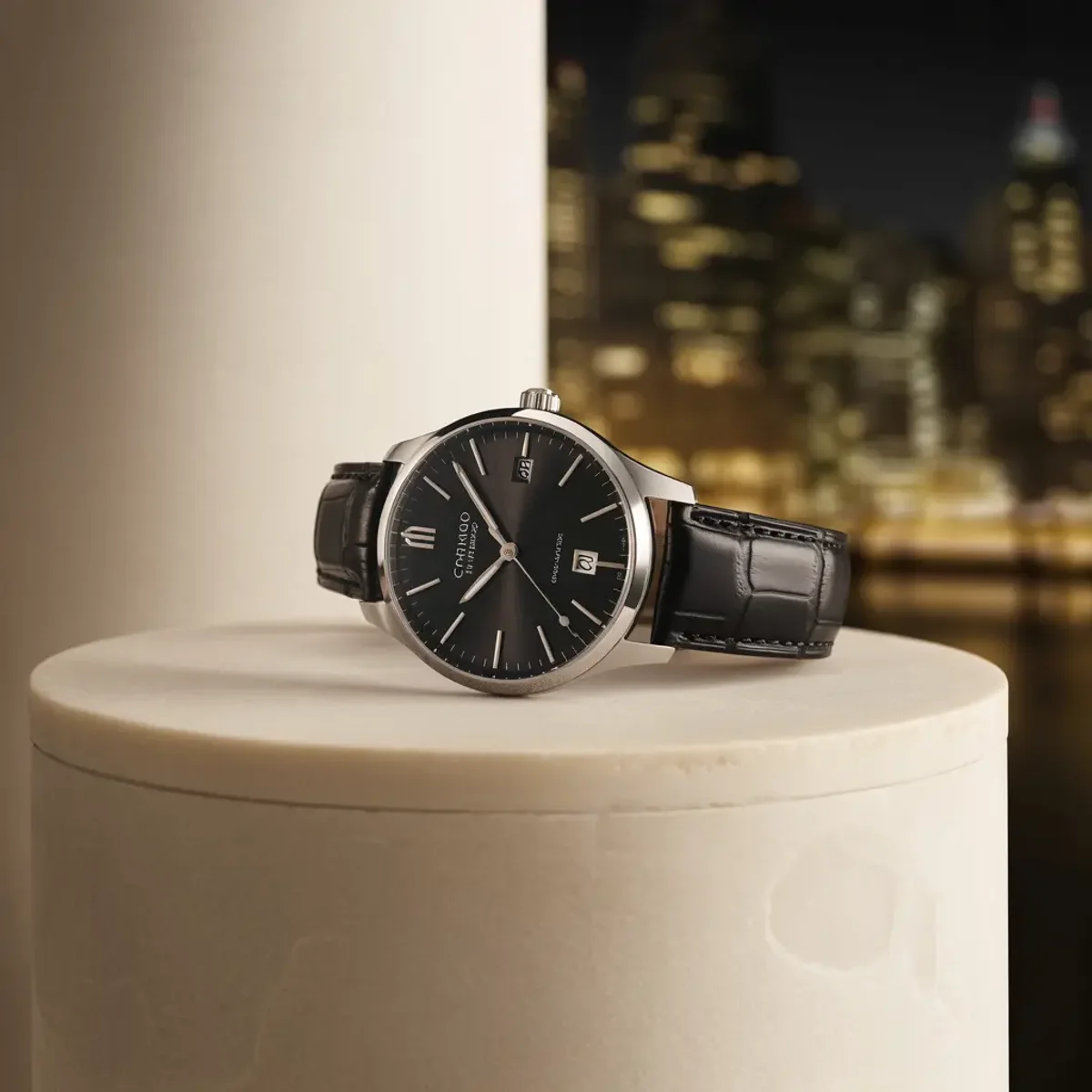
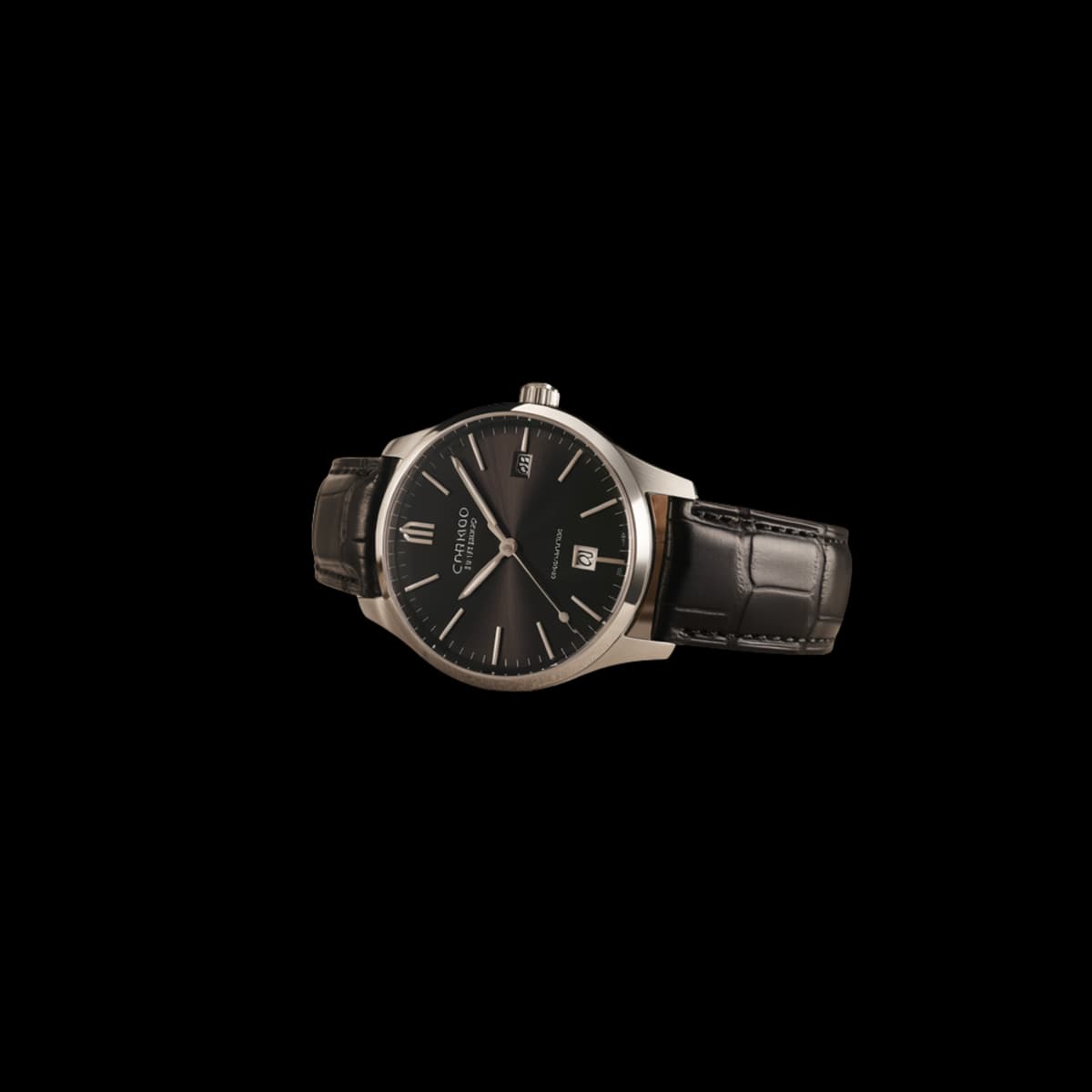
Original and transparent result
Separate the subject from the scene
Turn an ordinary image into a reusable subject with a transparent background for listings, layouts, profiles, and composites.
What automatic background removal handles
The tool identifies the main foreground subject and separates it from the surrounding scene.
Product cutouts
Isolate an item for cleaner catalog and marketplace layouts.
People and portraits
Prepare a person for profile graphics, thumbnails, and branded backgrounds.
Everyday objects
Create flexible visual assets without manually tracing the entire outline.
Transparent output
Reuse the isolated subject over a new color, image, or design.
Fine hair, fur, glass, translucent materials, soft shadows, and low-contrast edges can need extra review because foreground and background information overlap.
How to remove an image background
Upload one image, process it, and inspect the edge before using the transparent result.
1
Upload an image
Choose one JPEG, PNG, or WebP image up to 5 MB.
2
Remove the background
Start the process so the main subject can be detected and isolated.
3
Check and download
Inspect difficult edges against light and dark backgrounds, then download the result.
Input requirements and edge-quality tips
Clear separation between the subject and background usually produces the cleanest cutout.
- Accepted formats: JPEG, PNG, and WebP.
- Maximum file size: 5 MB.
- Upload one image with a clearly identifiable main subject.
For a cleaner cutout
- Use an image where the subject contrasts with the background.
- Avoid heavy motion blur around the outline.
- Check hair, fur, glass, and soft shadows at full size.
- Preview the result over both light and dark colors before publishing.
Useful ways to use a transparent subject
A clean cutout can move between many designs without repeating the extraction work.
E-commerce
Place products on consistent backgrounds for storefronts and marketplaces.
Profile images
Add a person to branded colors, frames, or channel artwork.
Marketing layouts
Build ads, banners, and social posts with flexible subject placement.
Design composites
Combine the isolated subject with new scenes and visual treatments.
Frequently asked questions
Will the result have a transparent background?
Yes. The result is prepared so the isolated subject can be placed over another background.
Which files can I upload?
Upload one JPEG, PNG, or WebP image up to 5 MB.
How does it handle hair and fur?
It can preserve fine edges, but wispy hair and fur should be checked closely because they often blend with the background.
What about glass or transparent objects?
Transparent and reflective materials are more ambiguous, so the result may need additional editing.
Will it keep the original shadow?
Soft or connected shadows may be treated as part of either the subject or background. Inspect the result for your intended layout.
How can I improve the result?
Use a sharp image with a clear main subject and good contrast along the outline.
Can I edit the cutout afterward?
Yes. Download the transparent result and continue in the image editor or your preferred design workflow.