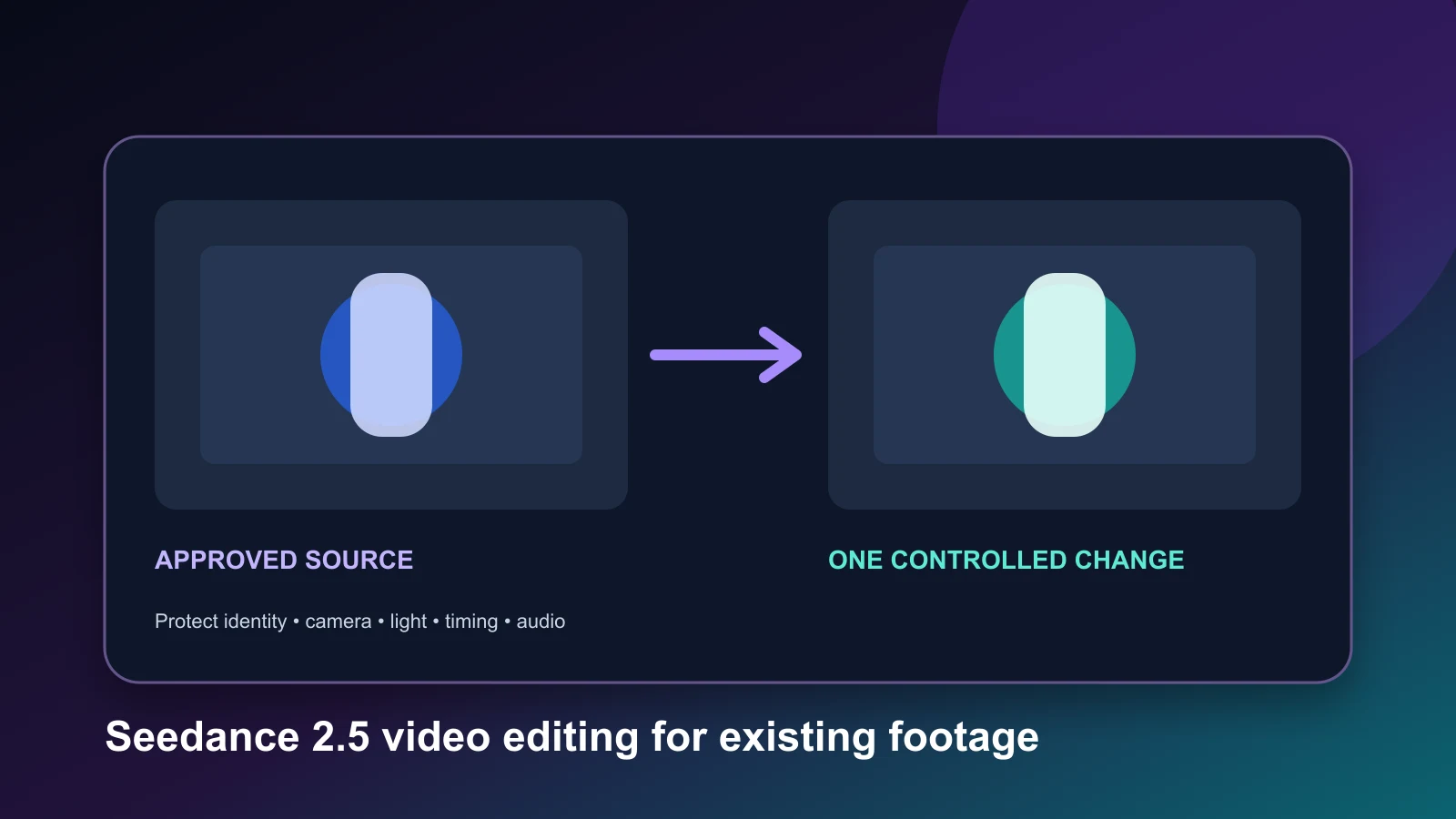
Seedance 2.5 video editing is most useful when a source clip is already close to approval and one defined element needs to change. Start by naming the change, the moment it happens, and everything that must remain stable. Then compare the delivered file with the source at the beginning, edit boundary, middle, and end. Use regeneration when the whole shot is wrong, Extend when the action should continue beyond the source, and conventional post-production for exact text, cuts, color, or audio mixing. This workflow reduces ambiguity, but it does not guarantee frame-accurate preservation.
This guide explains how to prepare that brief, choose the right operation, and review the result. It describes current documented capabilities and the controls exposed on Veemo. It does not report a paid production test, measured preservation rate, speed benchmark, price comparison, or guaranteed result. The diagrams and worksheets are original planning tools rather than generated-output evidence.
Verify the workflow before uploading footage
ByteDance launched Seedance 2.5 on July 31, 2026. Its official launch material describes editing, reference control, clips up to 30 seconds, and multi-round extension. The official model page also describes support for wider audio and visual editing requests. These are vendor descriptions. A host may expose only part of the wider product, so confirm the actual operation and settings on the platform you intend to use.
Veemo currently registers four Seedance 2.5 operations: Create, Edit, Extend, and First & Last Frames. The Edit route requires a primary video. That wiring confirms that an editing request can be submitted through the current workspace; it does not prove that a particular object, face, logo, line of dialogue, or time range will survive unchanged.
Before spending credits, open the live Seedance 2.5 workspace and record the model label, operation, available settings, quoted credits, source requirements, and date. Do not copy a price from code or an older article. Keep failed and refunded attempts separate when calculating actual cost. If a required option is missing from your account, stop and resolve that access question before preparing a large batch.
For Seedance 2.5 video editing, this platform check is part of the evidence: it separates a documented model capability from a control you can actually select today.
Choose edit, extend, regenerate, or finish in post
Not every revision belongs in Seedance 2.5 video editing. Classify the request before writing a prompt.
Use Edit when the source clip is broadly acceptable and the requested change is semantic: remove a distracting prop, replace a background element, alter a material, change an action, or adjust an audio-visual event while preserving the surrounding shot. The value of the operation depends on whether the accepted parts remain usable after the change.
Use Extend when the source ending should continue into new footage. The review boundary is the join: subject state, camera velocity, lighting, background, product geometry, hands, and sound should continue plausibly. An extension is not a repair to the middle of a clip.
Regenerate when the foundation is wrong. If the camera path, product design, performance, scene layout, and timing all need replacement, a long preservation list can become harder to satisfy than a clean generation brief. Keep the approved references and rebuild the shot intentionally.
Use conventional post-production when the change must be deterministic. Exact typography, legal copy, logo placement, subtitles, frame-accurate cuts, simple color correction, and audio mixing are often safer in an editor. AI editing can remain useful for a background or action change while final text and timing stay in post.
| Revision request | Best first route | Main acceptance risk |
|---|---|---|
| Remove one background object | Edit | Nearby texture or lighting changes |
| Continue the last action | Extend | Visible or audible seam |
| Replace the entire camera move | Regenerate | Preservation constraints conflict with the new shot |
| Correct packaging text | Post-production | Generated letters remain nondeterministic |
| Change product color while preserving form | Edit test | Material, label, and reflection drift |
| Cut a 12-second clip to 6 seconds | Post-production | No generative change is required |
This classification is a production recommendation, not a measured ranking of model performance. When two routes seem plausible, use the least expensive small sample that can answer the key acceptance question.
The best candidate for Seedance 2.5 video editing is therefore a valuable clip with a narrow, observable defect and a practical fallback.
Audit the source clip before the first edit
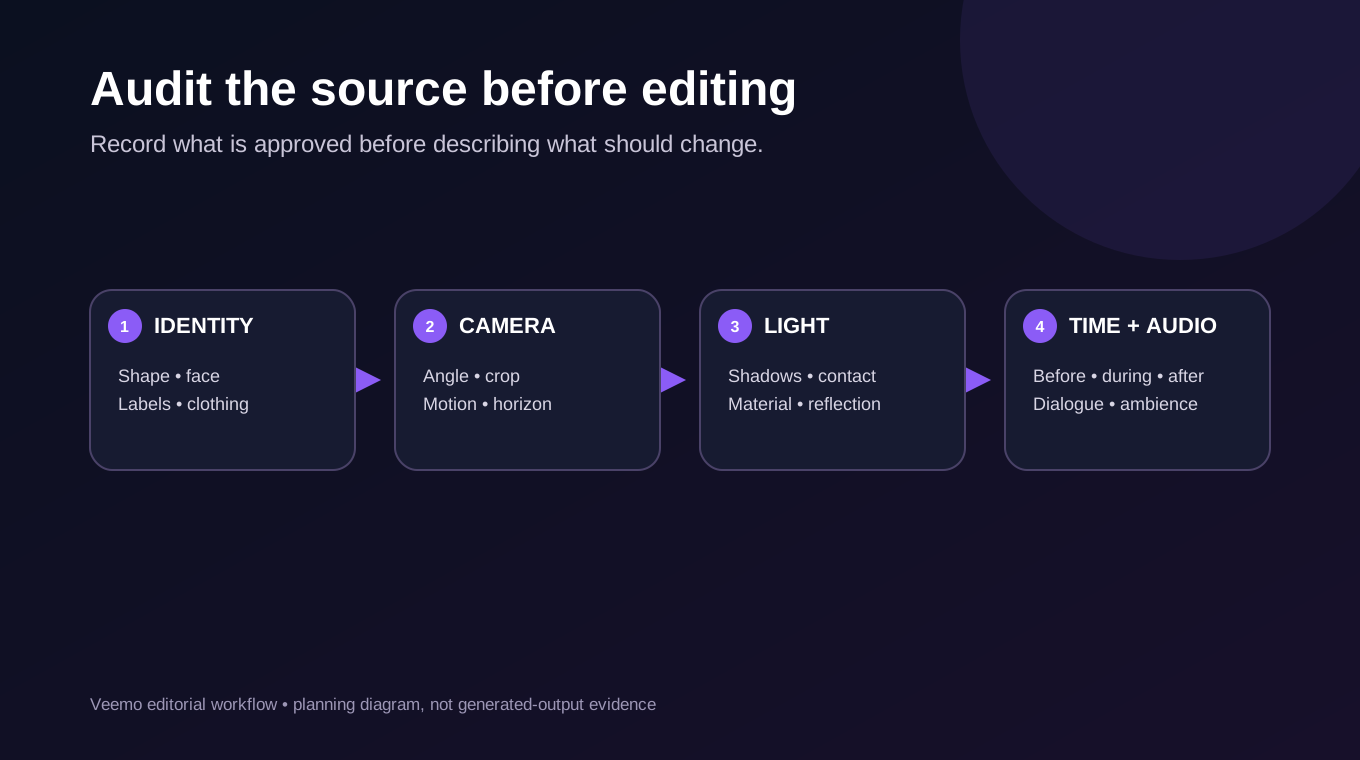
A strong Seedance 2.5 video editing request begins with a source audit. Watch the clip at normal speed, frame by frame around the requested change, and with audio isolated. Record the source filename and hash so a later replacement does not silently change the test.
Product and subject identity
List the silhouette, proportions, color, seams, closure, label position, face, clothing, and other identity anchors that must remain stable. If the source already contains a deformed hand or unreadable label, decide whether that defect is part of the edit. Do not treat an existing error as a preservation success.
Camera and composition
Describe camera height, viewing angle, movement, crop, horizon, and safe area. Mark any planned reframing. A prompt that asks to remove a prop but also says “make it more cinematic” gives permission for a global camera and lighting change.
Light, material, and contact
Track highlight direction, shadows, reflections, transparency, liquid behavior, and contact between hands, tools, packaging, and surfaces. A small replacement near reflective glass may affect more of the frame than its apparent area.
Time and audio
Write the observable event around the edit: what happens before, during, and after it. Note dialogue, effects, ambience, music, and silence. If the visual change should not alter audio, say so and still review the complete delivered soundtrack.
Create a frozen reference export with a visible timecode or keep the source open beside the candidate. Avoid judging from memory. Small changes in label spacing, shadow position, hand contact, or background geometry are easy to miss when the output is visually polished.
That side-by-side source remains the baseline for every Seedance 2.5 video editing acceptance decision.
Write a one-change Seedance 2.5 video editing brief
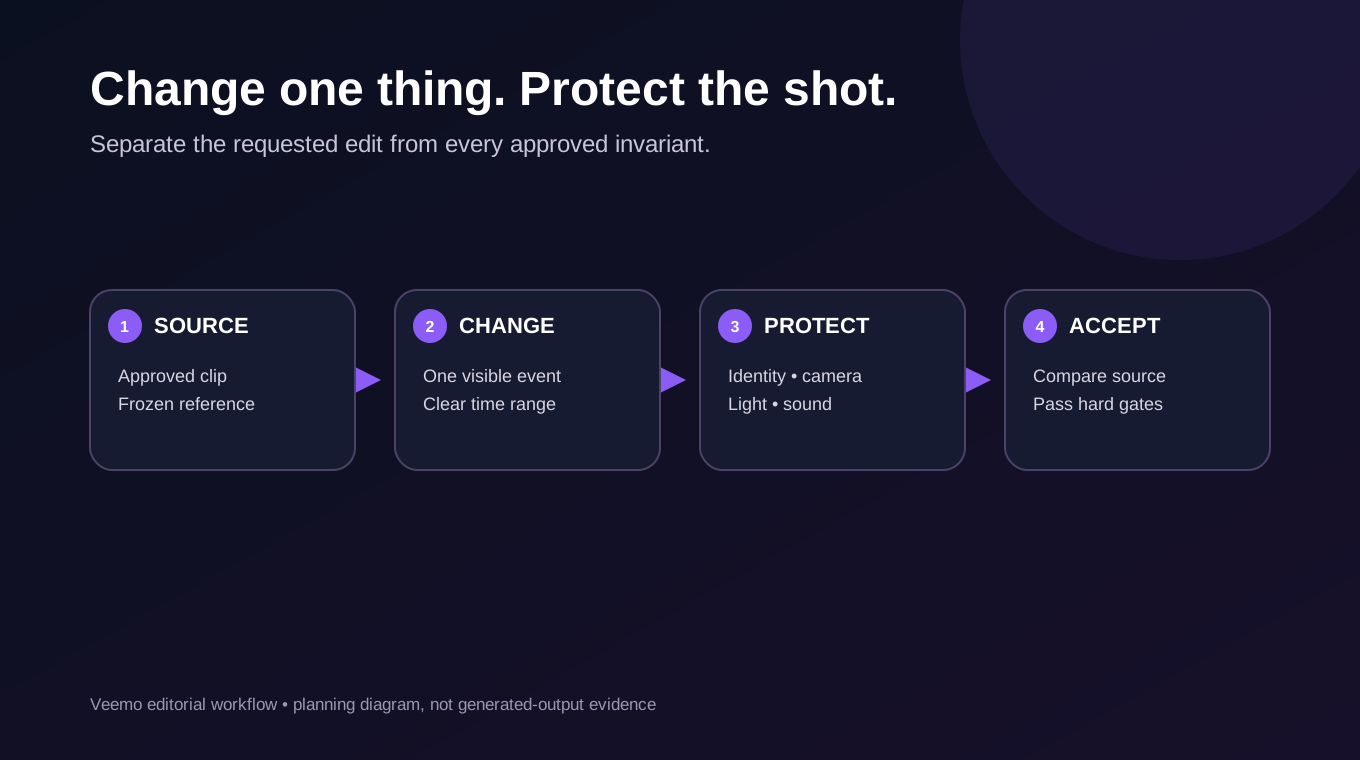
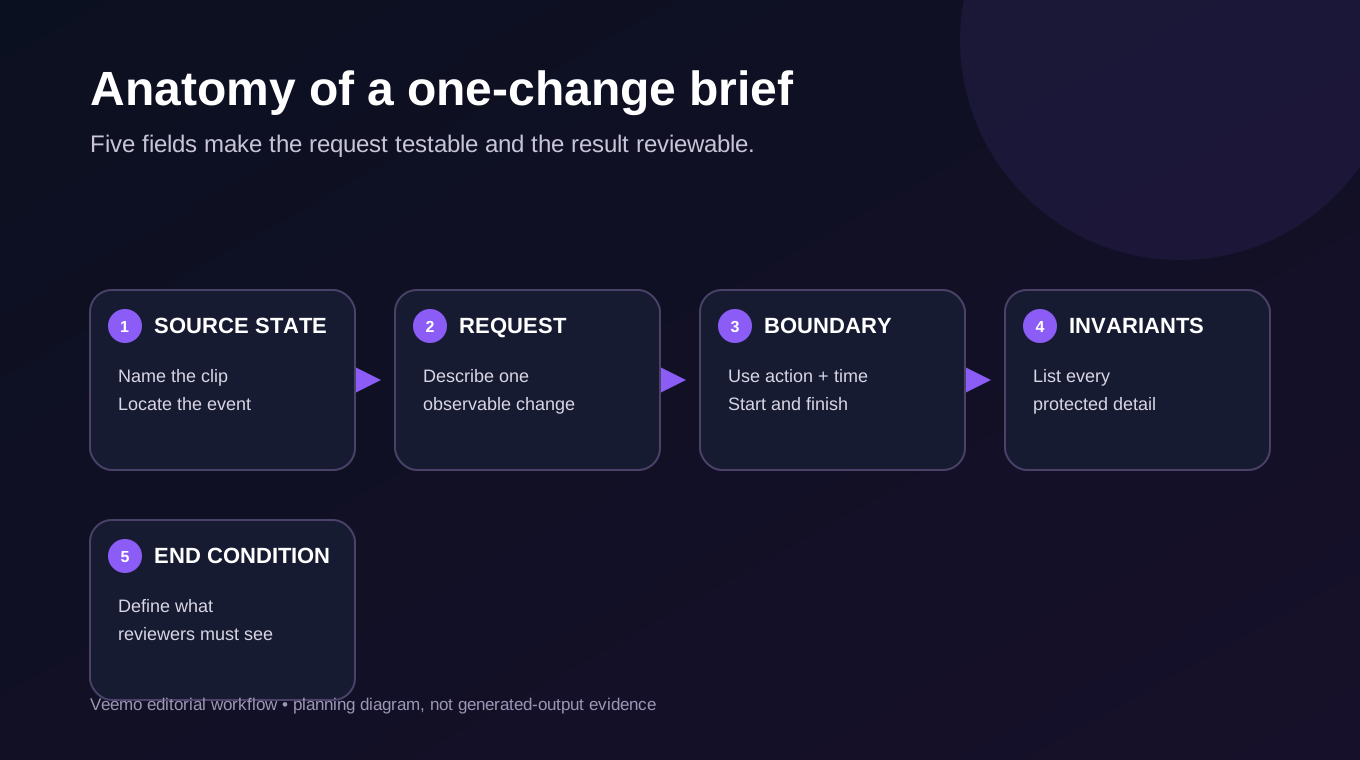
A practical brief separates five fields:
- Source state: identify the approved clip and the relevant event.
- Requested change: describe one visible or audible change in concrete terms.
- Time boundary: state when the change begins and resolves using observable actions as well as timestamps.
- Invariants: list the subject, product, camera, lighting, background, timing, and audio elements that must remain stable.
- End condition: explain what a reviewer must see when the edit is complete.
For example:
In the supplied studio bottle clip, remove the small silver clamp visible behind the pedestal from the moment it first appears until the end. Reconstruct the dark wall and its soft shadow continuously. Preserve the cobalt bottle shape, cap, blank front panel, pedestal, camera push-in, crop, highlight movement, duration, and existing audio. Do not add text, props, hands, particles, or a second bottle. The repaired background should remain stable through the final hold.
This is an original, untested example. It is narrow enough to review, but it does not guarantee that the model will preserve every listed element. If the first result changes the entire grade or camera, remove optional style language and make the edit boundary smaller.
Avoid combining “remove the clamp,” “make the light warmer,” “speed up the push-in,” and “add dramatic sound” in one pass. If the output fails, that compound request gives no clean evidence about which instruction caused the drift. Submit one semantic change first, preserve the result, and perform deterministic finishing later.
This one-change discipline makes a Seedance 2.5 video editing retry easier to diagnose and compare.
Run a minimal first pass and record the real cost
The first Seedance 2.5 video editing pass should answer one business question: can the requested element change while the approved shot remains usable? Use the shortest source segment that still includes enough context before and after the edit boundary. Do not crop away a reflection, hand, or camera movement that the final delivery needs.
Before submission, record the platform, account, date, operation, source hash, prompt, settings, quote, and expected acceptance gate. After completion, record the task identifier, credits deducted, any refund, output dimensions, duration, and review decision. A completed task is not automatically an accepted clip.
Calculate usable-output cost only from observed account records:
Sample cost = charged amount − confirmed refund + directly attributable post-production cost + review labor.
If the platform uses credits and no documented conversion to money applies to your purchase, report credits separately. If no candidate passes, do not divide by zero or invent a cost per accepted clip. Report the spend, attempt count, and zero accepted clips. This article has no paid run, so it provides no sample cost for Seedance 2.5 video editing.
| Log field | What to save | Why it matters |
|---|---|---|
| Source | Filename, hash, duration, resolution | Proves every candidate used the same input |
| Request | Exact prompt and operation | Makes a retry comparable |
| Quote | Displayed credits or price with date | Prevents stale-price claims |
| Output | Task ID, dimensions, duration, audio state | Verifies the delivered file rather than the requested setting |
| Decision | Accept, repair, retry, or reject with reason | Connects spend to usable footage |
Review the output with hard acceptance gates
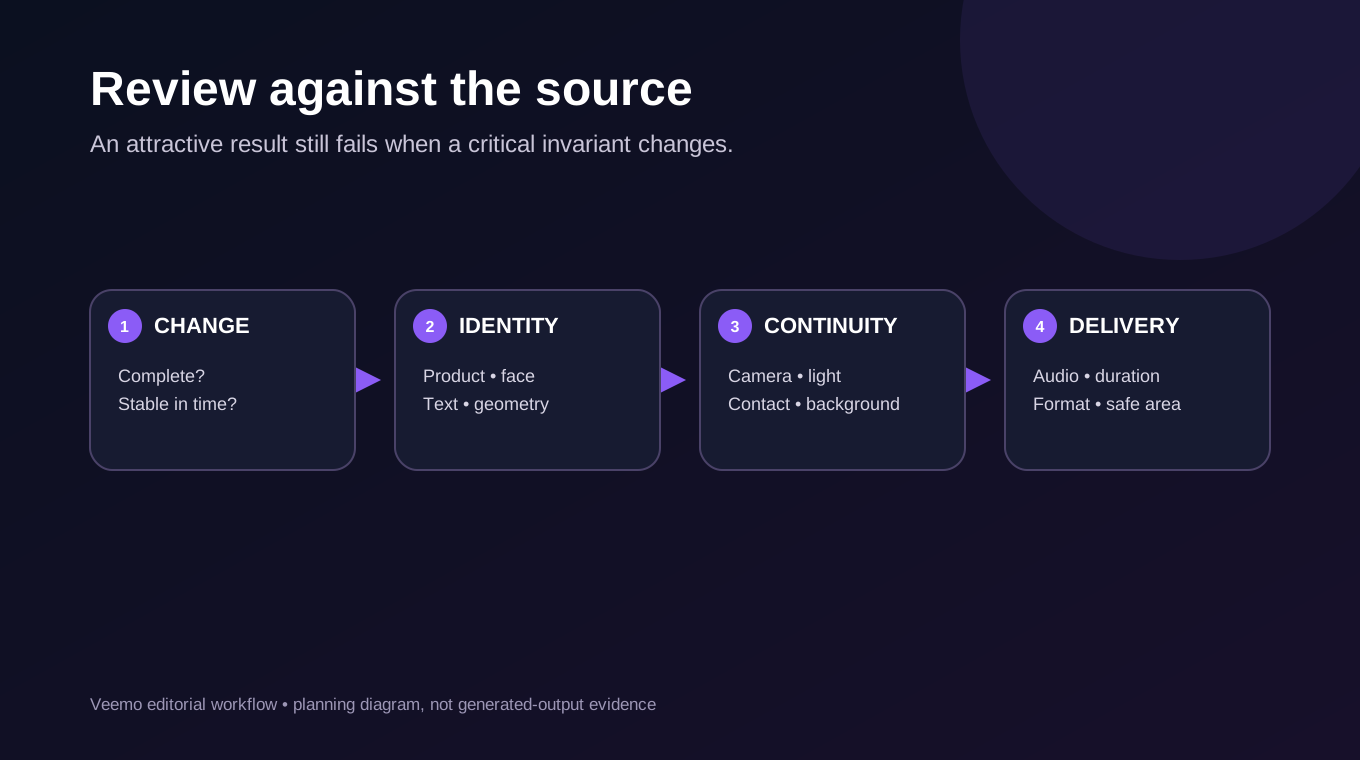
Review Seedance 2.5 video editing candidates against the source, not against a vague impression of quality. Start with the requested change: is it complete, temporally stable, and free of new artifacts? Then inspect protected details.
Use four checkpoints: the first clean frame before the edit, the first changed frame, a middle frame where motion or contact is hardest, and the final hold. Add more checkpoints when the shot contains cuts or fast movement. Watch at normal speed for continuity, then frame-step suspicious moments. Listen once without watching, especially when the visual instruction was supposed to preserve audio.
Use pass, repair, and reject as distinct decisions:
- Pass: the requested change is complete and all critical invariants meet the written gate.
- Repair: the generative change is usable, but a deterministic crop, cut, grade, text overlay, or audio fix remains.
- Reject: product identity, factual detail, timing, contact, required text, or another critical element is wrong.
Do not average away a critical failure. A product shot with a beautifully repaired background still fails if the bottle changes shape. A testimonial still fails if the speaker’s words or identity drift. Decide which fields are hard gates before viewing candidates, because attractive output can otherwise move the standard after the fact.
Diagnose common failures before retrying
A retry should change one variable and test a diagnosis. Sending the same broad prompt repeatedly creates more samples but little learning.
Global restyling
If the entire shot changes color, contrast, camera feel, or set design, remove style adjectives and state that the existing grade, lens feel, camera path, crop, and untouched background must remain. Reduce the edit to one object or event.
Identity or geometry drift
If a person, package, or product changes, shorten the edited interval and strengthen the invariant list with observable anchors. Use approved product imagery only where the selected workflow actually supports it. If exact geometry is mandatory, composite the approved product in post instead of treating a plausible redesign as acceptable.
Typography and logo changes
Do not rely on generative repair for exact legal copy, packaging text, subtitles, or brand marks. Preserve a clean plate, rebuild text in post, or mask the text area out of the generative step. Review every readable frame.
Temporal seams and invented objects
If an object flickers, disappears late, or causes a new prop to appear, describe its full time range and the background that should replace it. Check occlusion and reflection: an object may disappear directly while remaining in glass, metal, shadow, or sound.
Sound mismatch
If a visual-only request changes dialogue, ambience, or sync, treat the source track as protected. When permitted by the project and applicable terms, restore the approved original track in post and check synchronization. Do not claim that audio preservation is guaranteed merely because it was requested.
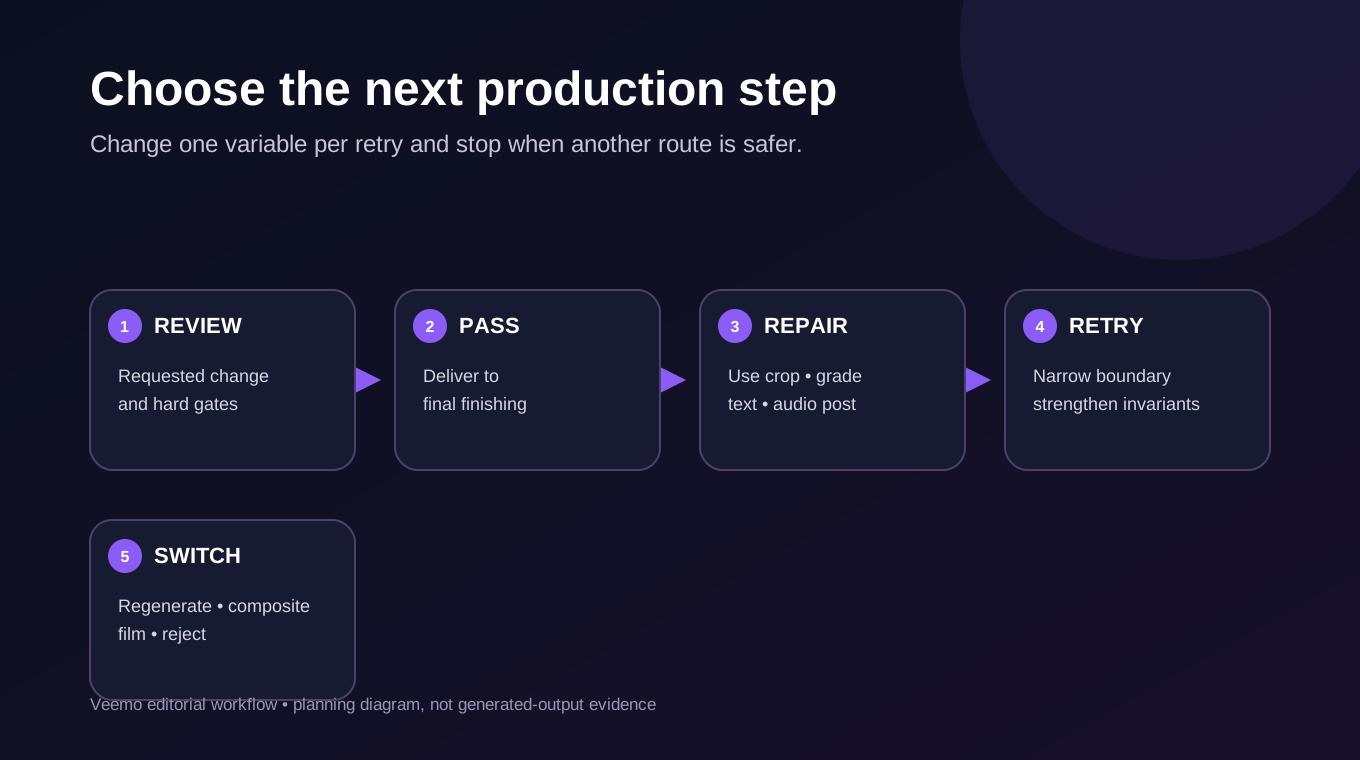
Set a retry limit. If two or three controlled attempts fail the same hard gate, simplify the request, use a conventional mask or composite, regenerate the shot, or return to live footage. The right limit depends on the quote, review time, deadline, and value of the shot; this article does not prescribe a universal attempt count.
Stop the Seedance 2.5 video editing experiment when another route can meet the written gate with less cost or uncertainty.
Watch the official editing demonstration with the right caveats
The official Dreamina launch video shows several vendor-selected workflows. Around 0:40, an editing example replaces a foreground object with a cactus; later sequences show reference cards and controls inside Dreamina. The useful takeaway is procedural: identify whether the task changes an existing scene, continues it, or builds a new scene from references before writing a long prompt. The replacement example also suggests why reviewers should inspect the surrounding ground, shadows, and continuity rather than checking only whether the named object appeared.
Treat the video as a vendor showcase, not an independent comparison, a Veemo tutorial, or evidence that your source will produce the same result. Controls visible in Dreamina do not establish feature parity on another host. Our repository research recorded the public video ID and reviewed the visual sequence; it did not establish a measured preservation rate, and captions were not available during the earlier review. The written workflow above remains complete without playback. You can also open the official video on YouTube.
Rights, disclosure, and unsuitable use cases
Model access does not answer whether you may upload, transform, or publish a source clip. Confirm the applicable platform terms, your rights to the footage, performer and voice permissions, music licenses, client restrictions, and local disclosure requirements. Keep those records with the project. This is practical production guidance, not legal advice.
Avoid Seedance 2.5 video editing when the output must prove a real event, product performance, medical result, safety procedure, or authentic customer statement that the edit could materially change. Use recorded evidence and deterministic post-production for factual demonstrations. Clearly label synthetic or materially altered footage when the context, agreement, platform, or law requires it.
High-risk source material also includes confidential prototypes, unreleased campaigns, children, biometric identity, and third-party footage with uncertain permission. Resolve authorization before upload. A model’s ability to accept a file is not permission to use it.
A practical recommendation for existing footage
Use Seedance 2.5 video editing for a controlled experiment when the source shot is already valuable, the requested semantic change is narrow, and your delivery schedule allows review and a fallback. Freeze the source, write one change and explicit invariants, capture the live quote, run a minimal sample, and judge the downloaded file against hard gates. Move exact text, cuts, color, and final audio to conventional post-production.
Choose Extend for new action after the ending, regeneration when the entire shot needs redesign, and recorded footage when the clip must serve as factual proof. If you are ready to test a bounded change, open the Seedance 2.5 workspace on Veemo, confirm the current Edit controls and quote, and start with one noncritical shot. The result of that sample—not the vendor showcase or this planning guide—should determine whether the workflow fits your production.
Frequently asked questions
Does Seedance 2.5 Edit require an existing video?
Yes in Veemo’s current implementation: the Edit operation requires a primary video. Confirm the live form before a production session because product controls can change. Other operations start from different materials.
Can it change one object without changing anything else?
That is a useful brief and review goal, but it is not a guarantee. Inspect identity, camera, light, contact, background, timing, text, and audio against the source. Reject the result if a protected critical detail changes.
Can I use it to correct packaging text or a logo?
Exact typography and logos are better handled in conventional post-production. A generative pass may alter letters across frames. Preserve or rebuild approved artwork and inspect every frame in which it appears.
What is the difference between Edit and Extend?
Edit changes content within an existing clip. Extend continues from the ending into newly generated time. For an extension, focus review on the join and the first new action; for an edit, compare changed and protected regions across the original duration.
Does Seedance 2.5 video editing preserve source audio?
Do not assume guaranteed preservation. State the desired audio treatment, listen to the whole candidate, and compare dialogue, effects, ambience, music, and synchronization with the approved source. Restore an authorized source track in post when appropriate.
How much does an accepted edited clip cost?
This article has no paid production run, so it cannot provide that figure. Save the live quote and actual charge for each attempt, subtract confirmed refunds, add attributable labor and finishing, and divide by accepted clips only when at least one clip passes.
How many retries should I allow?
Set a limit from the current quote, deadline, reviewer time, and shot value. Change one variable per retry. When the same hard gate fails repeatedly, narrow the task, use a deterministic composite, regenerate, or return to live footage.
Can commercially licensed source footage always be edited with AI?
Not automatically. A license may limit machine-learning use, derivative works, sublicensing, people, voices, territories, or advertising contexts. Check the source license, platform terms, client agreement, and applicable law for the specific project.