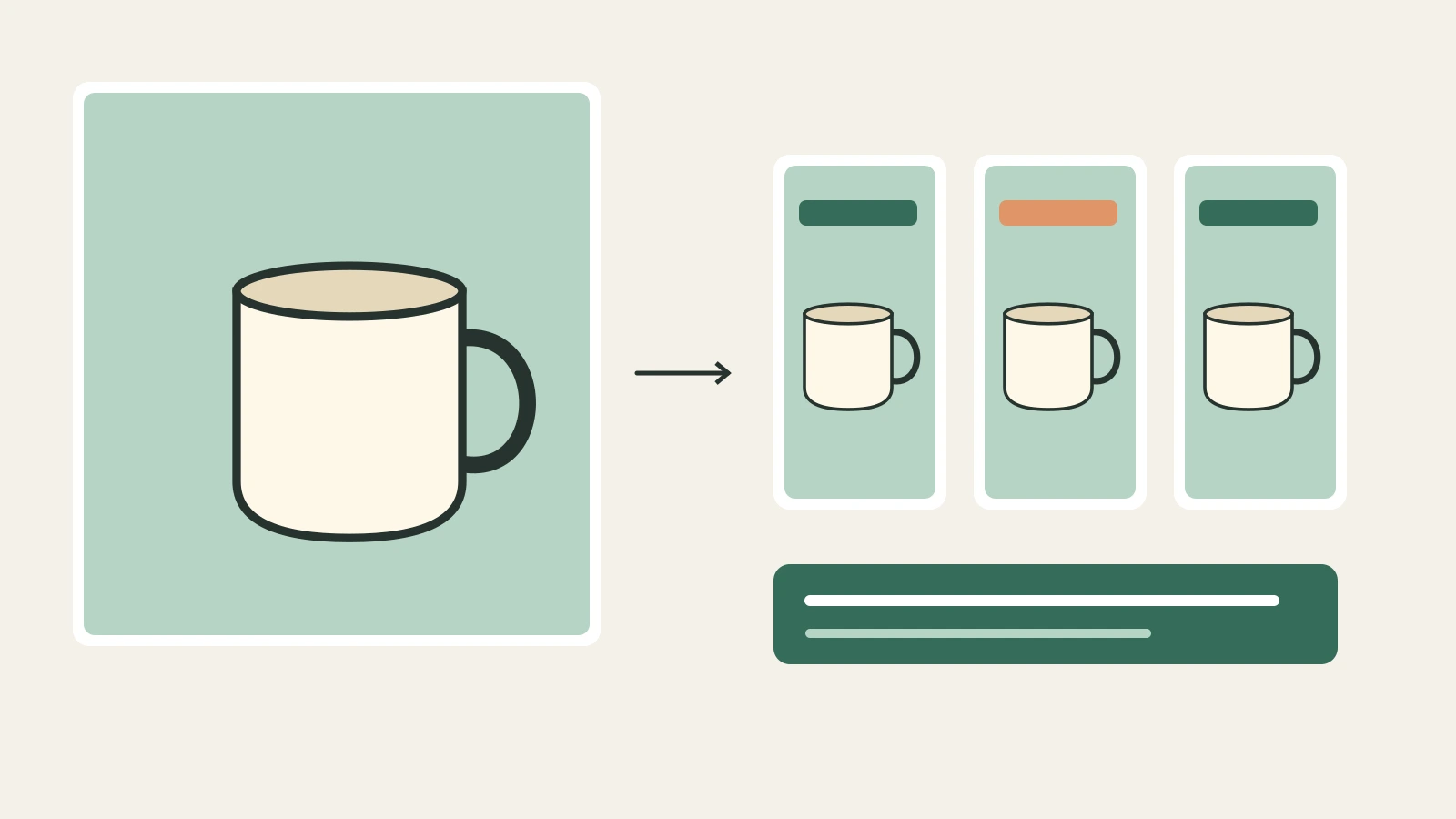
Good Black Friday video ads make three things easy to understand: what the product is, what the merchant is offering, and where to buy it. You do not need a complicated story to communicate those things. Start with a clear product photo, generate a few controlled shots in Veemo, and assemble them around your actual offer.
This guide walks through a proposed 15-second promotion for a ceramic mug: three five-second shots, one product reference, and editable offer text. The mug and campaign are illustrative. The prompts below have not been submitted as paid generation tasks, and the diagrams are planning aids rather than generated results. The aim is to give you a usable production recipe, with clear places to check the product and change the sale details.
Open Seedance 2.5 in Veemo alongside this guide. Use the Create workflow for the example. Veemo generates the clips; you will combine them and add prices, coupon codes, captions, and the final call to action in your video editor.
1. Decide what your Black Friday video ads should sell
For your Black Friday video ads, pick one product or one clearly defined bundle before opening the generator. A promotion showing a mug, a lamp, three unrelated accessories, and several competing discounts asks the viewer to solve your merchandising problem. A single product with a clear destination is easier to brief, review, and revise when stock or pricing changes.
Write a short production brief containing the product page, the exact variant, the approved offer, the campaign dates and time zone, and the destination link. Include any conditions that affect the purchase, such as a minimum basket or a code requirement. Use the terms your store will actually honor. Keep the offer in a separate text document so the person editing the video can check it against the landing page.
For our fictional example, the product is one cream ceramic mug with one rounded handle. The planned message is a Black Friday promotion for that exact mug, with the merchant supplying the final price and sale terms. We deliberately leave the numbers unspecified. You should replace the example with your real product and authorized copy, rather than borrowing an invented discount.
Choose one action for the end card: view the product, shop the collection, or apply a particular code at checkout. A button drawn inside a video is only part of the creative; configure the real clickable destination in the advertising platform. Check that it opens the correct product on a phone.
2. Prepare the product photo and the offer separately
Use a photo you own or have permission to use. For a mug, choose an image with a sharp rim, visible handle, accurate color, and a simple background. Avoid a reference where the hand hides half the product or where a sale sticker covers its shape. The generator needs a useful visual reference, and you need a reliable comparison when reviewing the result.
Keep a small reference sheet beside the source photo: cream glaze, one handle, cylindrical body, no printed logo, and the actual size if it matters to the scene. These details become your acceptance criteria. A plausible-looking mug with two handles or an invented logo is still the wrong product.
For Black Friday video ads, put the offer in an editable layer later. Asking a video model to reproduce an exact price, coupon code, expiry date, or small package label creates another thing to inspect on every frame. An ordinary text layer lets you correct a typo or change the offer without regenerating the product shot. You can also retain that layer for translated versions.
Prepare a logo file and a short line of sale copy for the editor, but keep the product reference clean. If a brand mark or readable packaging is essential, compare it carefully in the generated footage and consider using an original product photograph in the final end card. Never accept invented certification symbols, review stars, product features, or claims just because they look polished.
3. Set up the first shot in Veemo
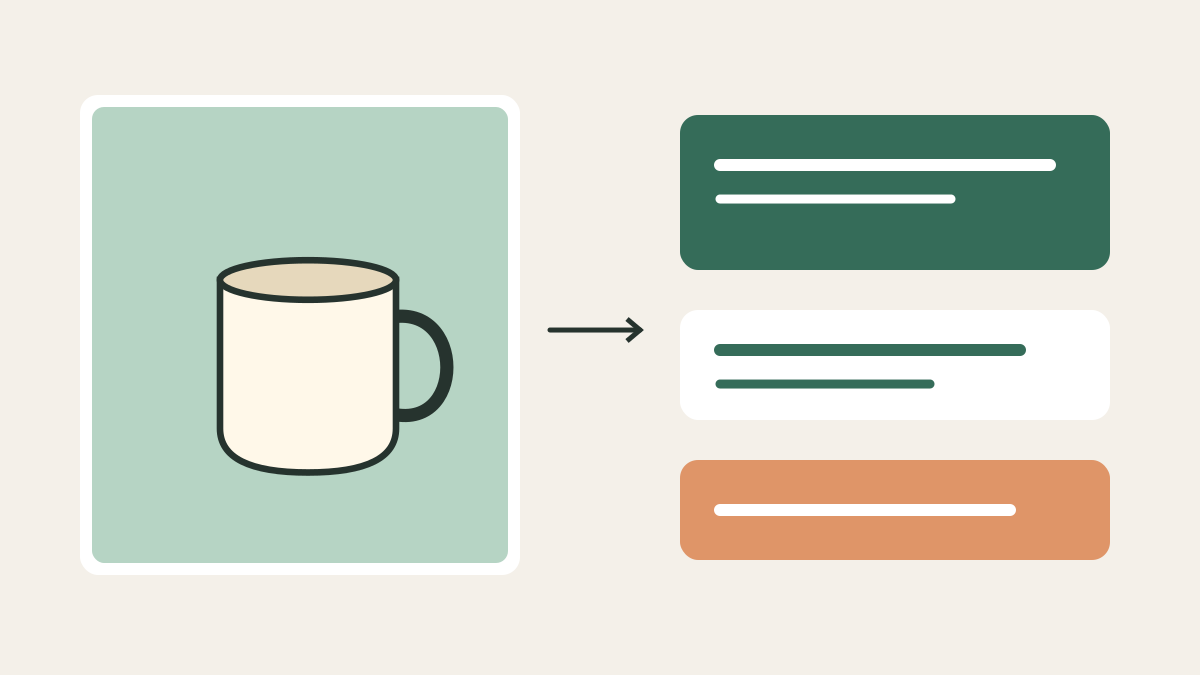
On the Seedance 2.5 page, select Create and confirm that the model field shows Seedance 2.5. Upload your product image through Upload file, then enter one shot prompt. Do not paste the entire advertisement as a request for three unrelated scenes if you want to review and replace each shot independently.
For the vertical example, set Video Ratio to 9:16, Resolution to 720P, and Video Length to 5. The current Create form also offers 480P, an audio switch, MP4 or MOV, and an optional last-frame return. Use MP4 for this example. Decide whether you need generated audio before submitting; you can also add your own cleared music or voice track during editing.
The form checked on October 27, 2026 supports four to thirty seconds, so a five-second request fits the available control. It does not offer a native two-second request. If your opening needs to be shorter, generate an allowed duration and trim the usable section in the editor. Similarly, choosing 720P does not produce native 1080p detail merely because you later export a larger canvas.
Check the displayed estimate before selecting Create Video. The observed five-second, 720P setup with no video input displayed 235 credits. This was a visible form estimate, with no upload or generation submitted during our check. An image-only reference stays within the no-video-input example; adding a video reference changes the pricing basis. Confirm your own populated form before committing credits.
When your reference, prompt, settings, and estimate are correct, select Create Video to submit that shot. Wait for the task to finish, open the completed result, and download the clip for review. The current download flow requires an account with a completed payment; the generation estimate is separate from download access. A pending or failed task is not finished footage. Keep the same product reference and settings for the next shot, replace the prompt, and repeat. Save the three downloads with distinct shot names so you can find them in your editor.
4. Build Black Friday video ads from three simple shots
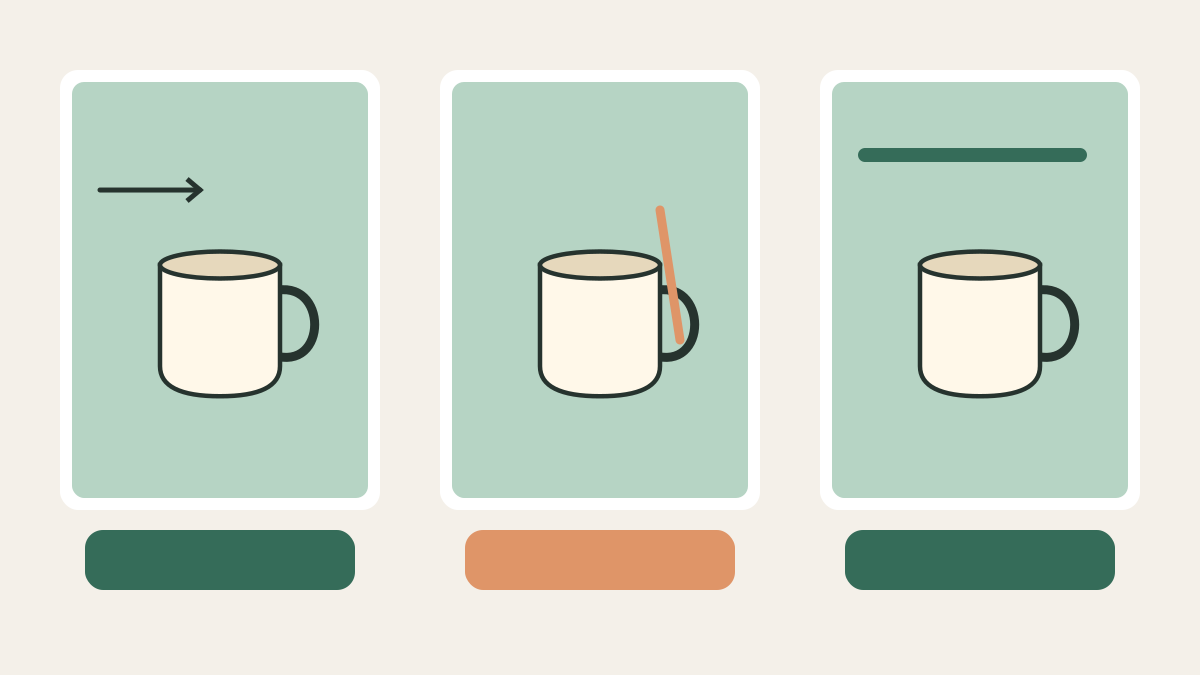
Build Black Friday video ads by giving each shot one job. The first identifies the product, the second supplies a closer look, and the third leaves a stable background for the offer and action. Three separate requests make it possible to replace a weak middle shot while keeping the other usable material. They do not guarantee three acceptable outputs on the first attempt.
| Planned time | Visual job | Text added in the editor |
|---|---|---|
| 0–5 seconds | Show the whole mug immediately with a slow push-in. | A brief Black Friday headline. |
| 5–10 seconds | Show the visible handle and glaze with restrained camera movement. | One approved product detail, if useful. |
| 10–15 seconds | Hold a clean product composition with room for copy. | The actual offer, conditions, and one action. |
This is an editing plan, not a claim that the model will deliver exact five-second commercial beats. After generation, choose the stable portions and adjust the cut. You may decide that two strong shots and an original-photo end card communicate the product better than using all three generated clips.
Shot one: introduce the product
Use the uploaded product photo as the visual reference. A cream ceramic mug with one rounded handle sits on a plain warm-gray tabletop. Show the complete mug from the beginning. Make one slow, gentle camera push toward it. Keep its shape, handle count, and glaze color consistent with the reference. Soft studio lighting, a simple background, no additional products, no people, no writing, no prices, and no logos added. Vertical composition with clear space around the mug.
Shot two: reveal a visible detail
Use the same uploaded mug photo as the reference. Show the mug's visible handle and glazed surface on the same warm-gray tabletop. Make a short, restrained camera move while keeping the mug recognizable. Preserve the single rounded handle, cream color, and reference proportions. Do not invent markings or hidden features. No hands, pouring, steam, liquid, text, or extra objects. Leave enough space to crop without cutting off the handle.
Shot three: leave room for the offer
Use the uploaded mug photo as the reference. Create a calm product composition on a plain warm-gray background. Keep the cream mug with one rounded handle clearly visible near the center, with generous open space around it for text to be added later. Very subtle camera movement only. Preserve the reference shape and color. No text, sale badges, prices, extra handles, logos, or other products.
Replace the mug description with facts visible in your own reference. Keep motions conservative when the product has fragile geometry, reflective packaging, or a label that must remain readable. Prompt instructions express your intent; they are not a guarantee that every detail will survive generation.
5. Review the product before you add the promotion
Review Black Friday video ads against the source product, not only against the prompt. Watch each clip at normal speed, then pause where the camera angle changes. Check the silhouette, number of parts, color, logo, label, and contact with the surface. Reject footage that makes the product appear to do something it does not do.
For the mug, inspect the rim and handle throughout the motion. A handle that briefly merges into the body may be less obvious during playback than in a still frame. If the problem appears during an otherwise useful shot, see whether a shorter clean section works. Do not cut around a defect if doing so leaves the viewer with a misleading view of the product.
Record which section you accepted and why. Keep the original photo, prompt, settings, and downloaded clip together. If you regenerate, change one relevant instruction at a time: simplify the move, remove unnecessary props, or use a clearer reference. A vague request for a more premium result gives you less useful information about what needs to change.
At the observed estimate, three five-second requests would total 705 credits; one additional request at the same settings would bring the planned allowance to 940. Those are arithmetic planning examples, not measured spending or a promise of fifteen usable seconds. You may need fewer shots, more attempts, or a different setup. For purchase-budget examples, see the Veemo video-ad budget guide.
6. Add the offer, captions, and sound in your editor
To assemble your Black Friday video ads, import the accepted clips into a video editor and build a fifteen-second timeline. Trim unstable beginnings or endings, then choose simple cuts. Put the product on screen early. Treat the first two seconds as an editorial check for immediate clarity, rather than a promise about performance or a universal platform requirement.
Add your merchant-approved sale headline, exact offer, and destination cue as separate layers. Use a readable type size, strong contrast, and enough display time to understand the message. Keep important conditions readable alongside the relevant claim. If a promotion requires a code, make the code easy to distinguish from ordinary descriptive text.
For Black Friday video ads with a voice track, make the spoken offer agree with the written offer and add accurate captions. Review a muted version too: the product and buying action should remain understandable. Use music, voice recordings, and other assets you are entitled to use. A model demonstration video embedded below does not license its soundtrack or imagery for your campaign.
Export a review file and send it with the offer sheet to the person responsible for pricing. Ask them to check the video, the ad text, and the landing page together. If the sale changes later, edit the offer layer and re-export; you should not need to recreate an otherwise accurate product shot.
7. Adapt Black Friday video ads for each placement
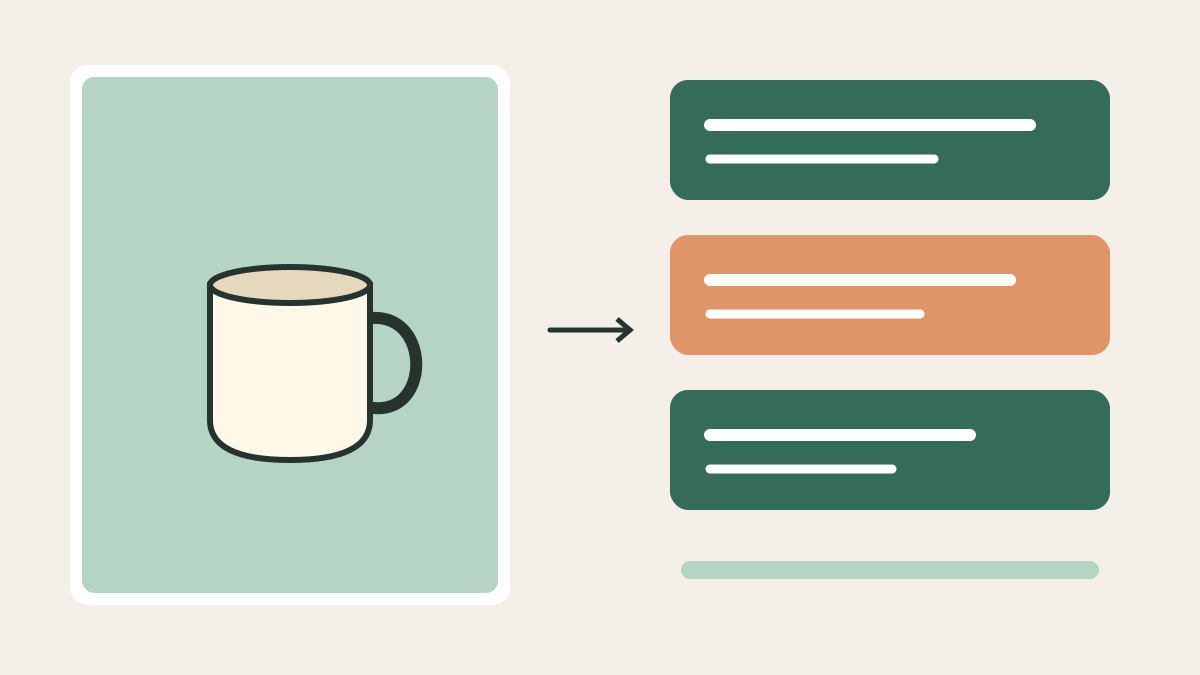
Start with one placement and make an intentional composition for it. TikTok's current official in-feed guidance recommends vertical 9:16 for non-Spark ads. Google's current Shorts guidance also recommends vertical 9:16, with ten to thirty seconds suggested for action-oriented ads. Our fifteen-second example is a creative choice within that guidance, not a mandatory length for every campaign.
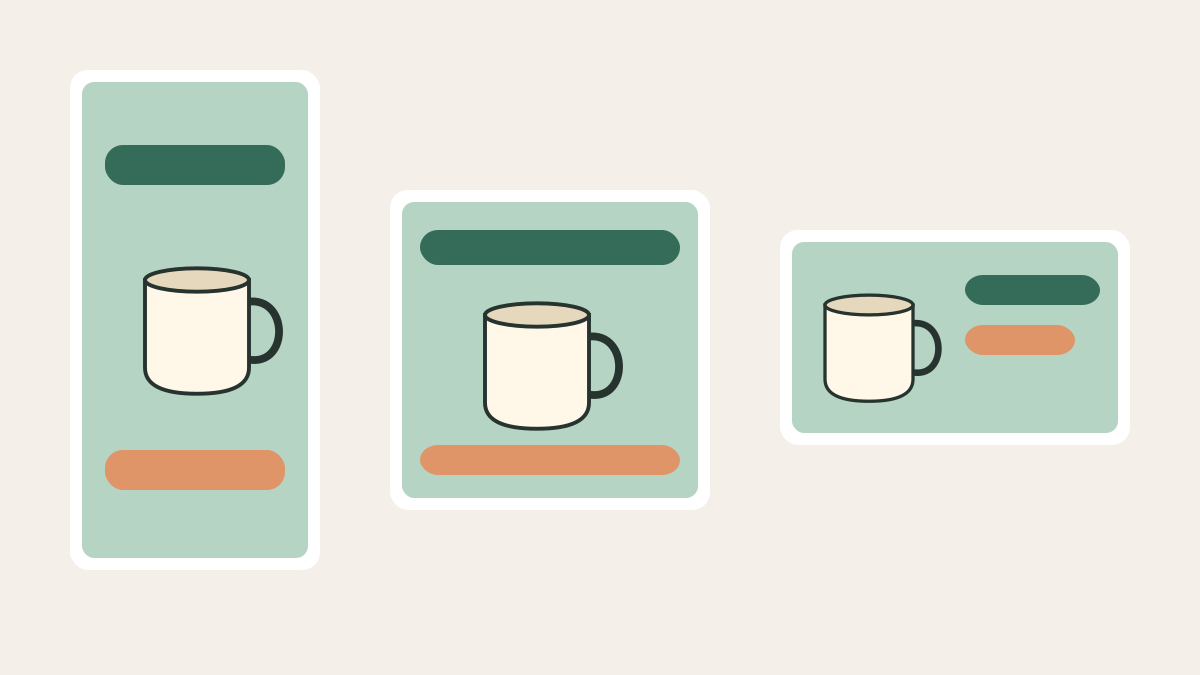
The Veemo form offers native 9:16, 16:9, 1:1, 4:3, 3:4, 21:9, and Auto choices. It does not list 4:5. If a placement calls for 4:5, reframe or crop in your editor and inspect the product and text. Do not tell a teammate to select a Veemo control that is not there.
| Version | Production approach | Final check |
|---|---|---|
| Vertical 9:16 | Generate a vertical product composition and add vertical text layers. | Preview the actual placement overlays and keep the product and offer clear. |
| Square 1:1 | Use a square generation or reframe a sufficiently spacious shot. | Reposition the headline and action; do not simply shrink the entire vertical layout. |
| Landscape 16:9 | Plan a wider composition when a horizontal placement needs it. | Check empty space, product size, and readable copy at phone size. |
Use the platform's current preview and safe-zone guidance. Interface buttons, captions, and placement details affect usable space; there is no single margin that solves every channel and language. Google also requires a Shorts ad video to be uploaded to YouTube as public or unlisted. Complete the upload and campaign setup in the relevant platform, rather than looking for an ad-publishing button in Veemo.
8. Check Black Friday video ads against your store
Before launching Black Friday video ads, check the destination from the exported file's campaign setup. Does the product match the video? Is the advertised variant available? Does the price or code work under the stated conditions? Are sale start and end times clear to the team running the campaign? Remove an unavailable product or expired offer promptly.
Give your Black Friday video ads version names that identify the product, placement, language, offer revision, and approval date. Keep an approved master and avoid overwriting it with a last-minute experiment. When making multiple openings, hold the rest of the offer and destination stable so you know what you changed. Results still require actual campaign data; producing variants alone does not establish which performs best.
Check any advertising-platform questions about generated media or required labels truthfully. Keep product and promotional claims supportable. For a deeper discussion of source-material records and client delivery, use the commercial-use production checklist.
9. Model demonstration and common questions
The official Dreamina video below introduces Seedance 2.5. It provides model context, not a demonstration of the mug prompts in this guide or a completed Black Friday campaign. Watch it for the general kind of motion the vendor presents, then return to your own product reference and acceptance criteria. A vendor showcase does not establish that your packaging, exact lettering, or a particular motion will be reproduced correctly.
Can I start from one product photo?
Yes, this proposed workflow uses one image reference in Create. A second permitted photo can clarify another visible angle, but additional references do not guarantee exact product reconstruction. Inspect the result against the real item.
Does Veemo add my Black Friday price automatically?
This workflow adds the merchant's price and sale terms in a separate video editor. Keep them editable and check them against the store before exporting each offer revision.
Should I generate a full fifteen-second clip?
You can choose fifteen seconds in the current duration control. Three separate five-second requests are useful when you want to inspect and replace individual shots; they are a production option, not a proven quality advantage.
Can I make a two-second opening?
The current form starts at four seconds. Generate an allowed duration, review it, and trim a clean opening in the editor. Do not assume that every requested second becomes usable footage.
Can I reuse the same creative across channels?
Reuse accepted product footage where it fits, but rebuild the text layout and inspect each placement preview. A crop that cuts off the handle or hides the sale condition needs another composition.
How do I know the ad worked?
Measure the actual campaign using the advertising platform and your store's data. This guide contains no paid generation test, sales experiment, conversion result, or promised return.
Start your Black Friday video ads with one product and one offer. Create the first product shot in Veemo, inspect it against the reference, and build the promotion around footage you can confidently use.
Sources checked October 27, 2026: Veemo's current Seedance 2.5 form, ByteDance model overview, TikTok in-feed specifications, and Google Shorts ads guidance. Form estimates and platform requirements can change; check them again before submitting a generation or launching a campaign. Original diagrams show planning concepts, not generated product footage.