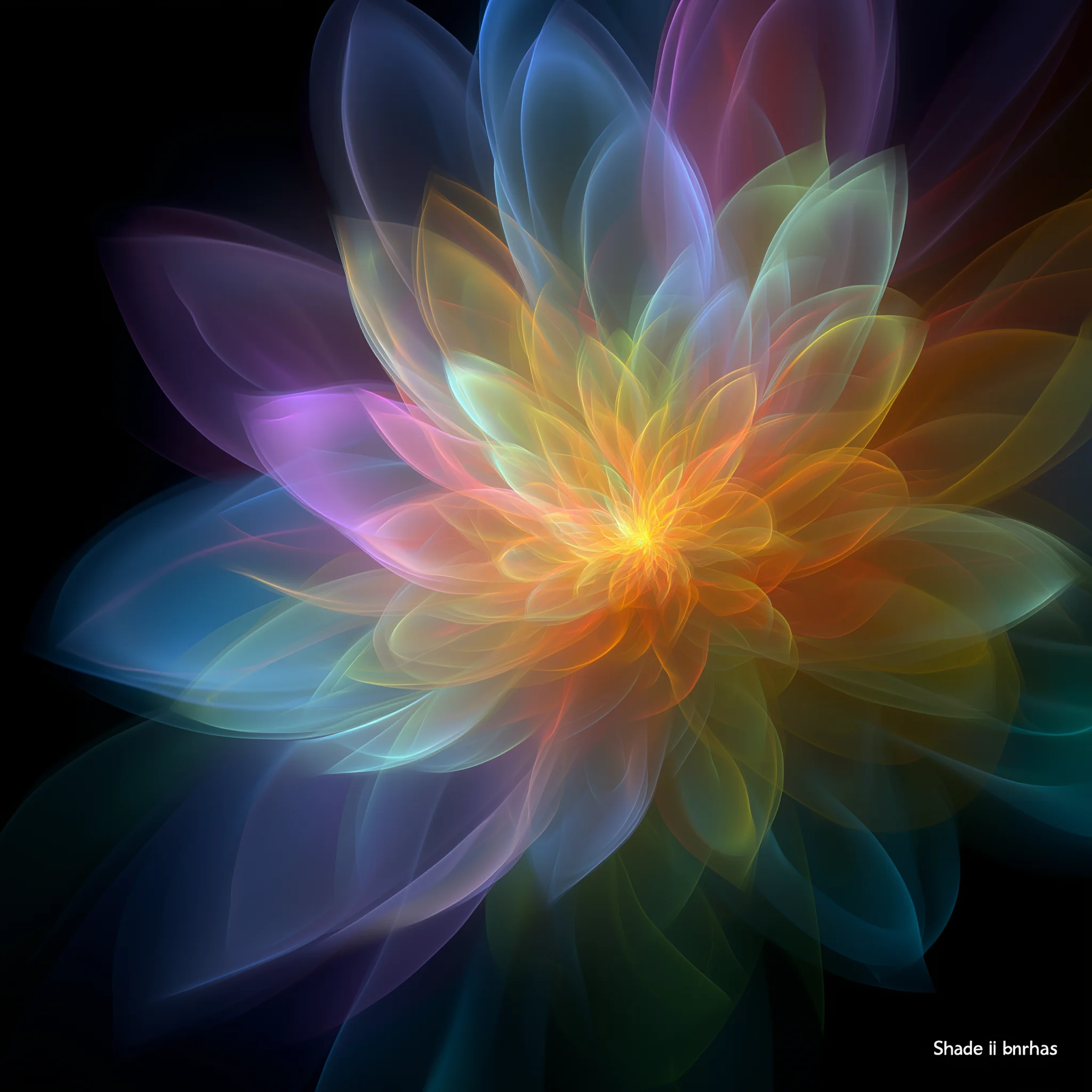
GPT Image 2 AI Image Generator
Create and edit images with GPT Image 2
Turn a written brief or a reference image into product visuals, campaign graphics, illustrations, and image-editing ideas. Describe the subject, composition, color, and text you want, then review the result and refine your next prompt.
Explore and refine
Develop several directions from a clear brief, then refine the details that matter.
Choose your resolution
Select 1K, 2K, or 4K in the generator to suit your intended format.
Use everyday language
Describe the changes you want in words, with reference images when useful.
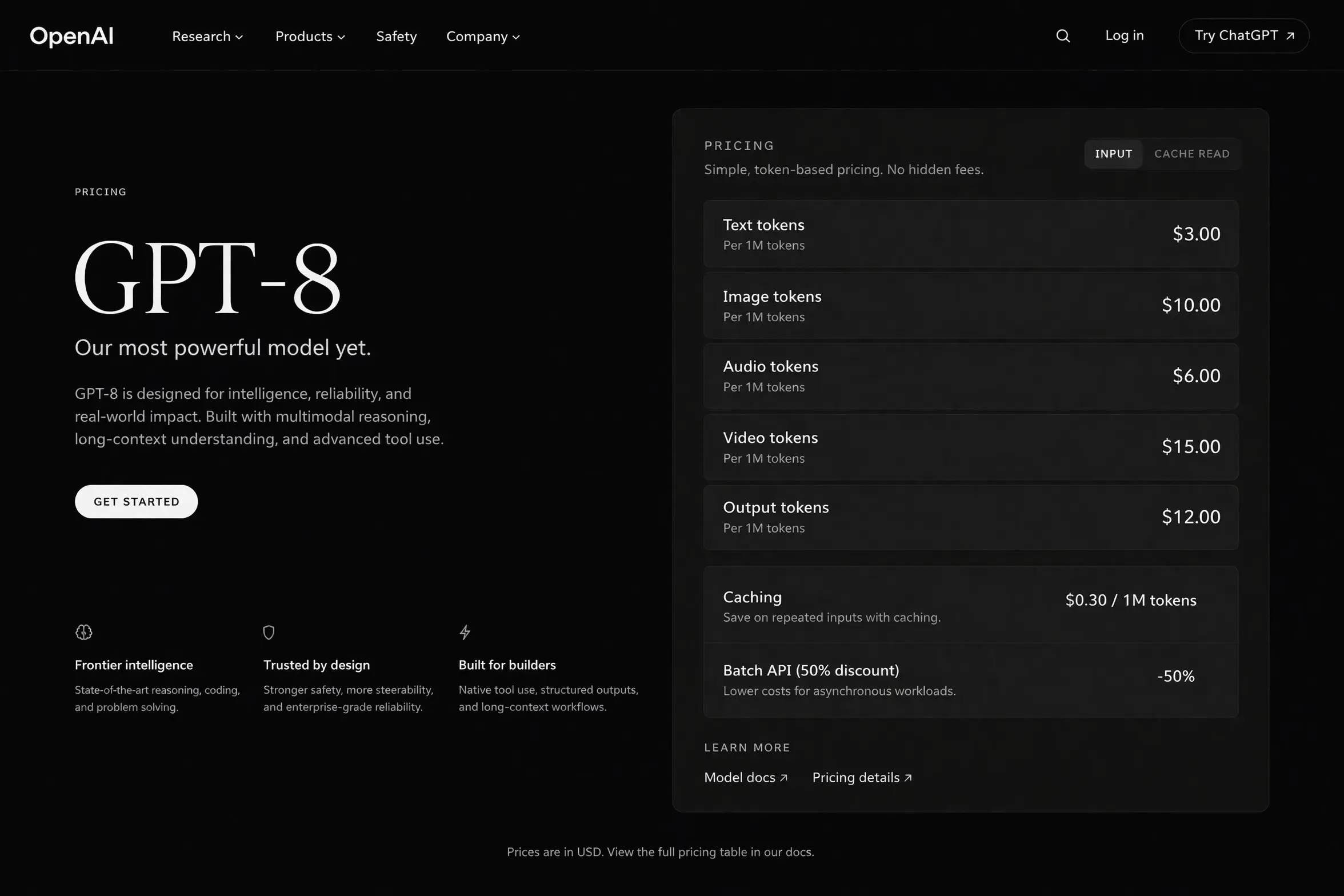
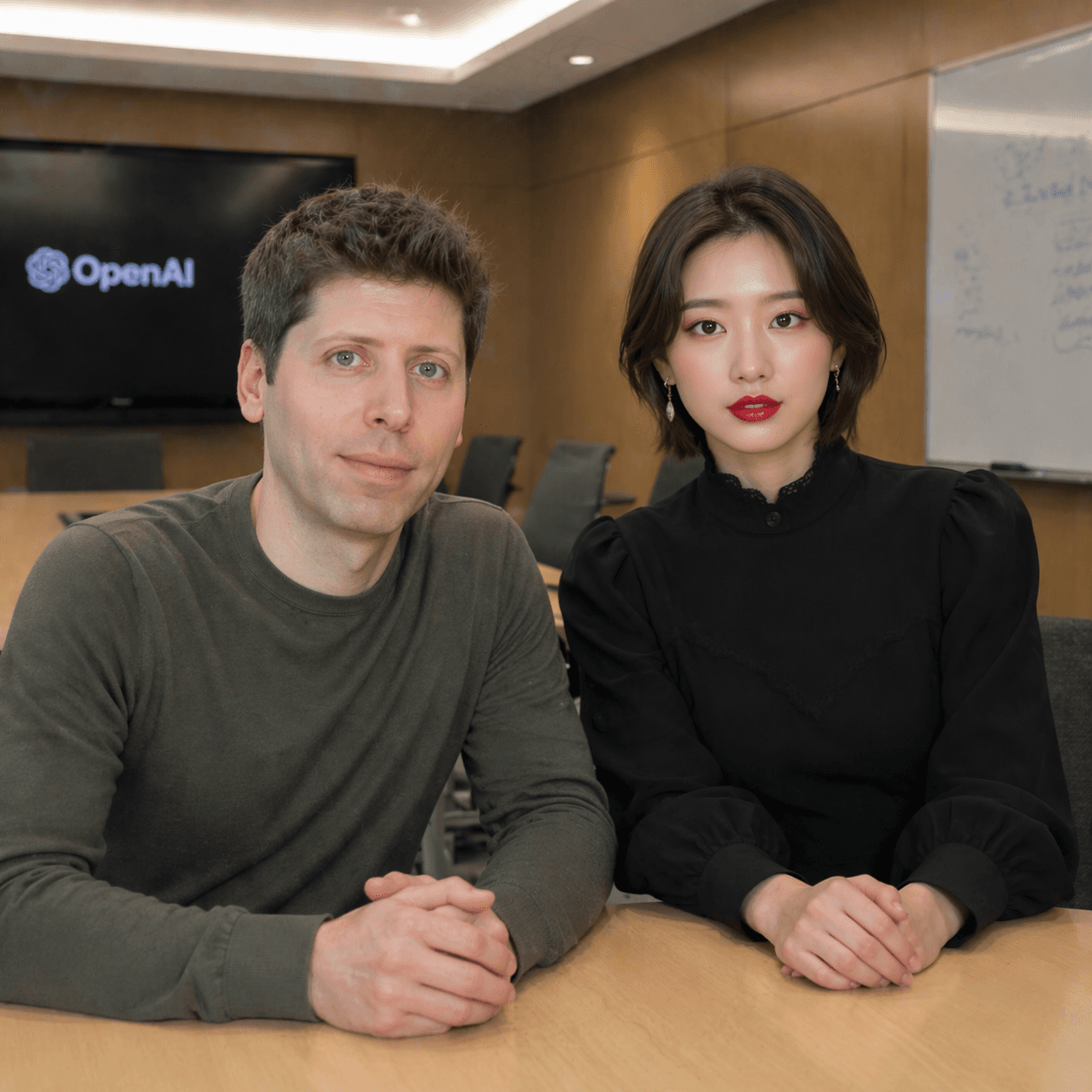
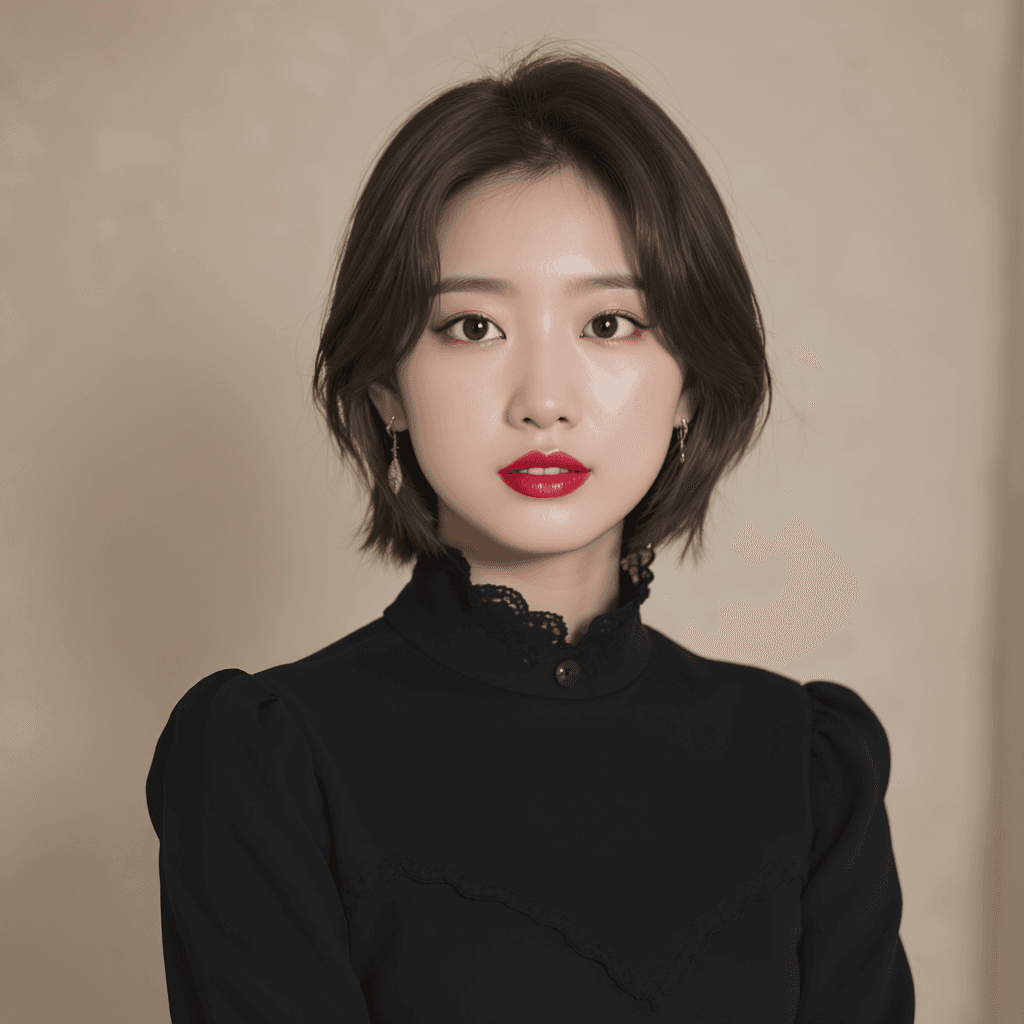
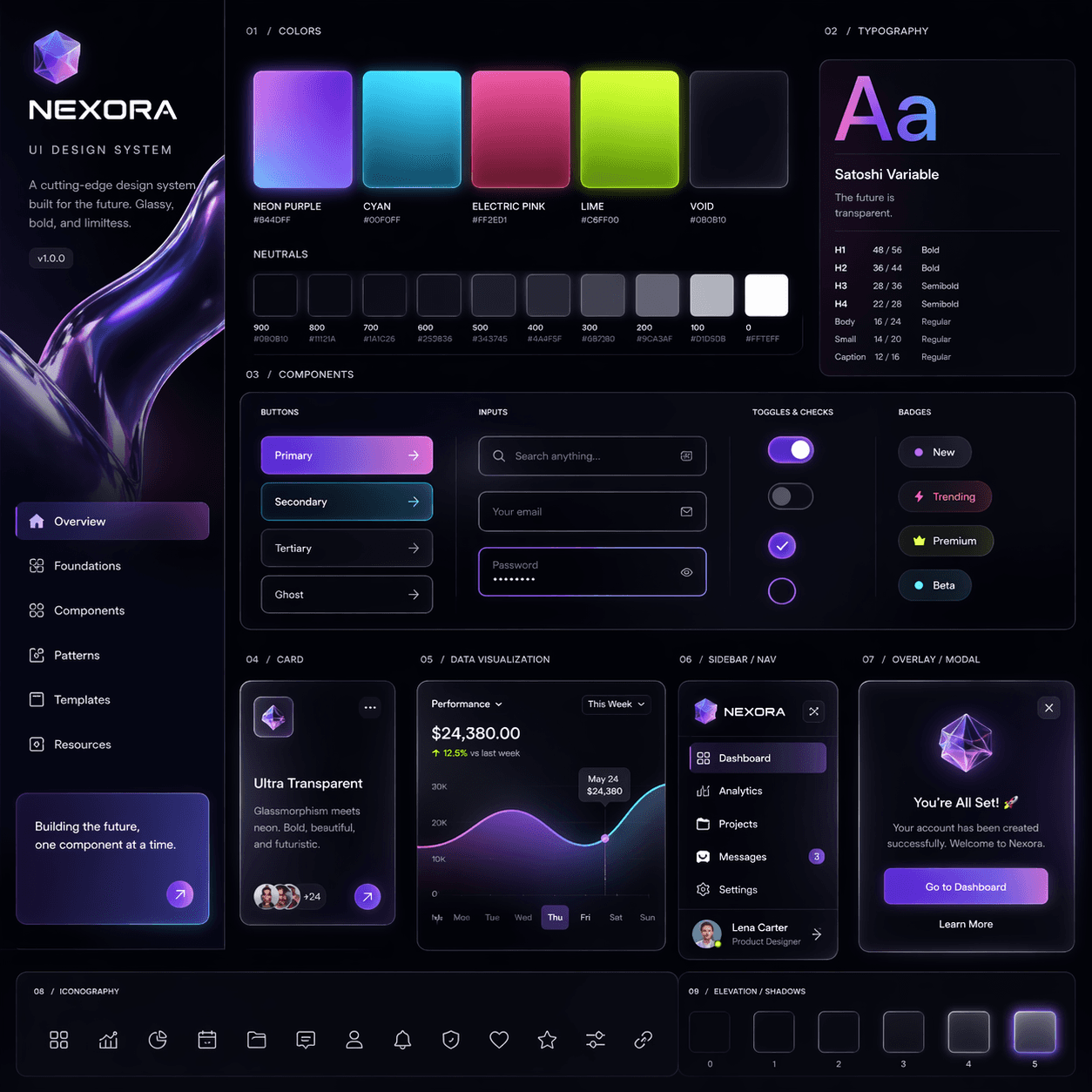
What you can create with GPT Image 2
Start from text, edit an uploaded image, or bring references into your visual brief. Explore ideas for branding, ecommerce, advertising, posters, and everyday content production in the same workspace.
Develop a clear visual direction
Use a direct brief to explore composition, lighting, typography, and style. Review each image against your goal and adjust the prompt as your idea takes shape.
- Explore advertising concepts, campaign visuals, posters, landing page art, and product photography ideas.
- Specify the background, framing, colors, and important details for social posts or ecommerce assets.
- Check wording, layout, and fine details before choosing an image for your final design.
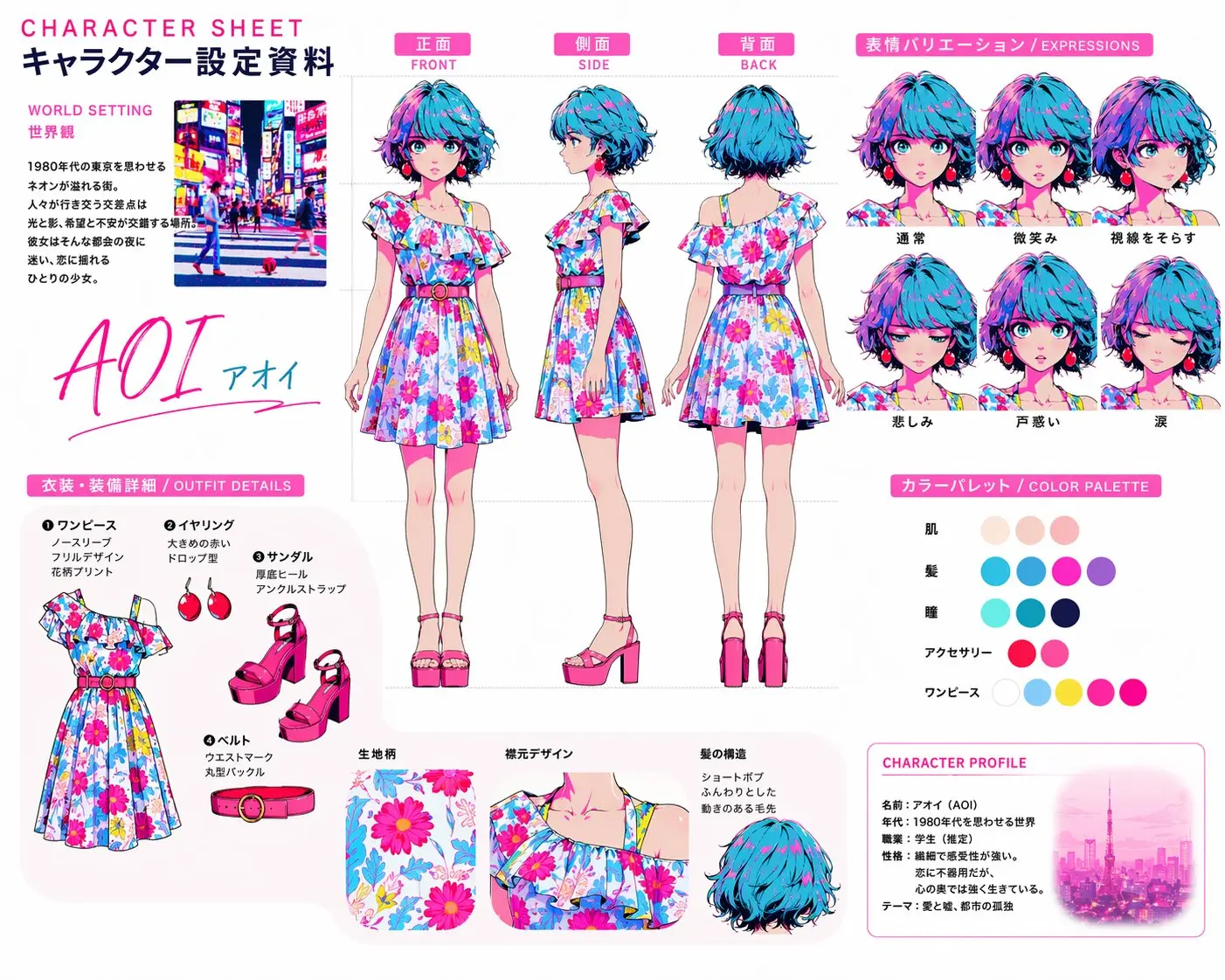
Guide characters and products with references
Use a reference image to describe the face, object, or mascot you want to carry into another scene. References can guide a storyboard, a series of ad concepts, or a product image collection.
- Describe which identity details should stay while you change pose, clothing, lighting, or setting.
- Explore several scenes built around a recognizable subject.
- Compare the results with your reference and refine any details that have changed.
Edit images with natural language
Upload an image and describe the change you want. Explore color adjustments, background changes, object replacements, cleanup, and layout revisions through an image-editing prompt.
- Describe packaging colors, a new background, or details you want to remove or revise.
- State which parts of the original image should remain unchanged.
- Review the edited image and use the next prompt to clarify any remaining changes.
Bring references and styles together
Combine reference images with written art direction to explore a visual mood, product setting, or composition. Explain what each reference contributes to the final scene.
- Bring subject references, environment ideas, and visual direction into one brief.
- Describe the lighting, palette, and overall mood you want to achieve.
- Explore brand campaigns, packaging concepts, product hero images, and editorial mockups.
GPT Image 2 examples and visual ideas
Explore product scenes, illustrations, packaging concepts, and layouts with text. Use these examples to plan your own subject, framing, colors, and visual direction.
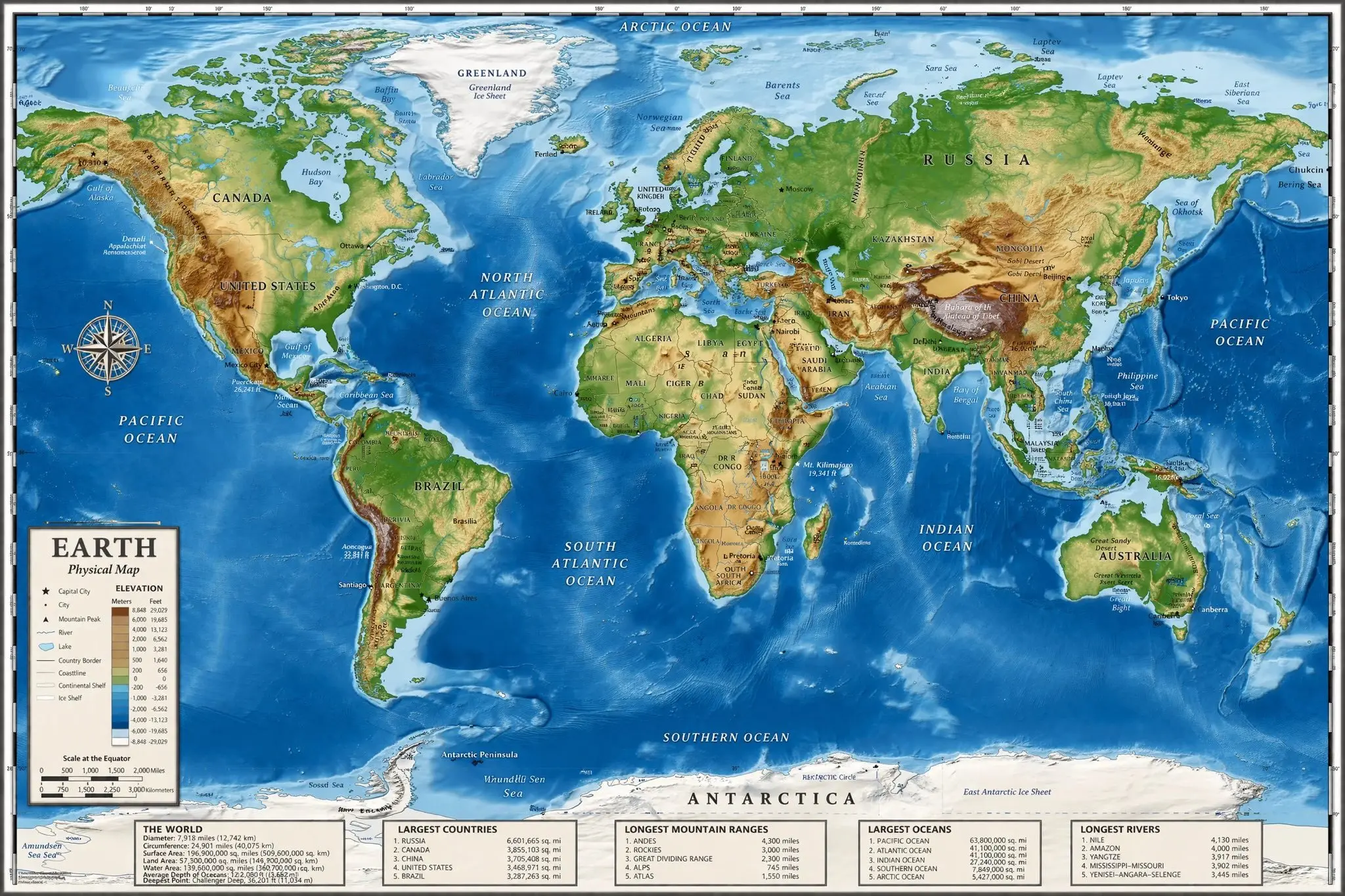
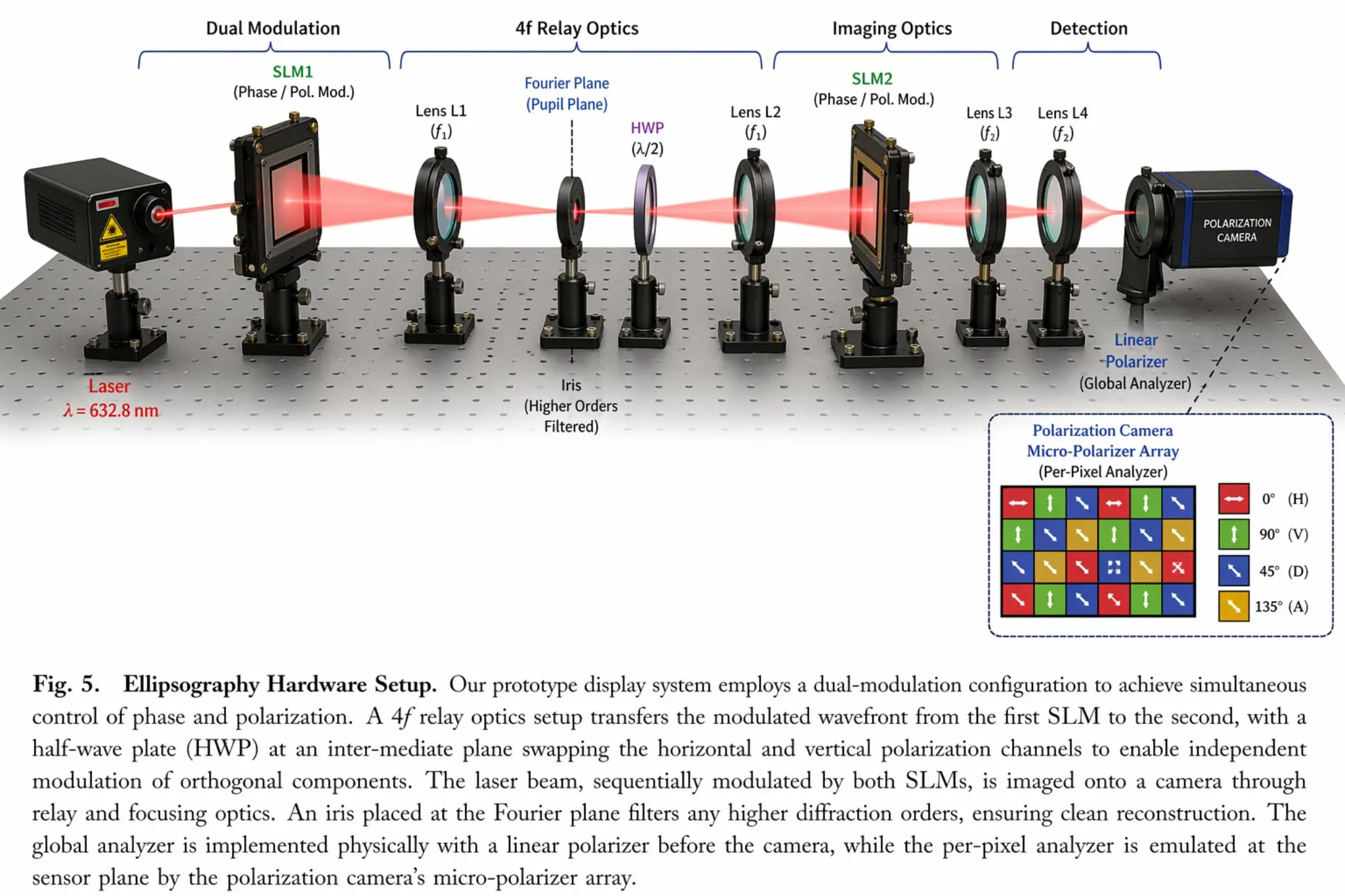
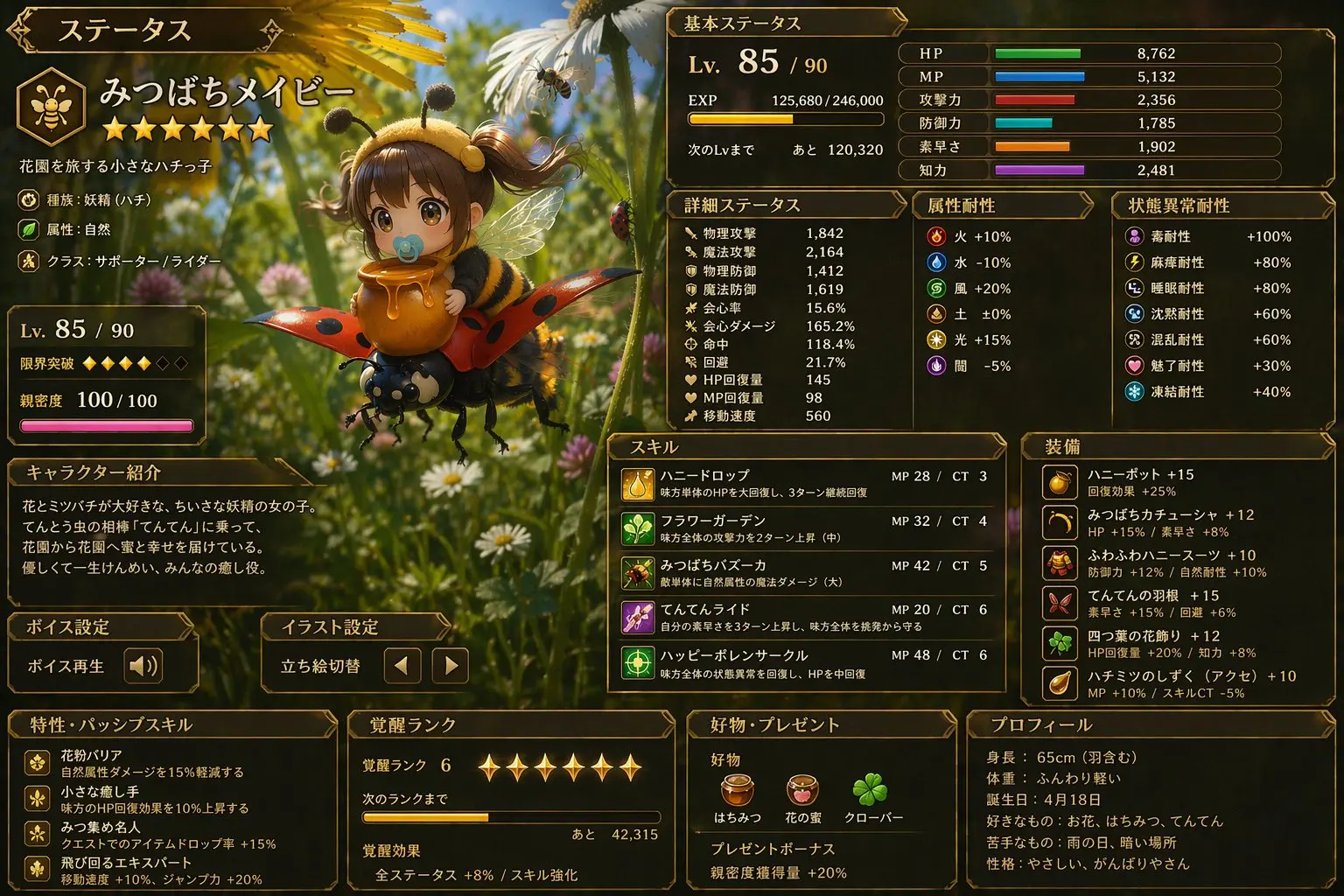
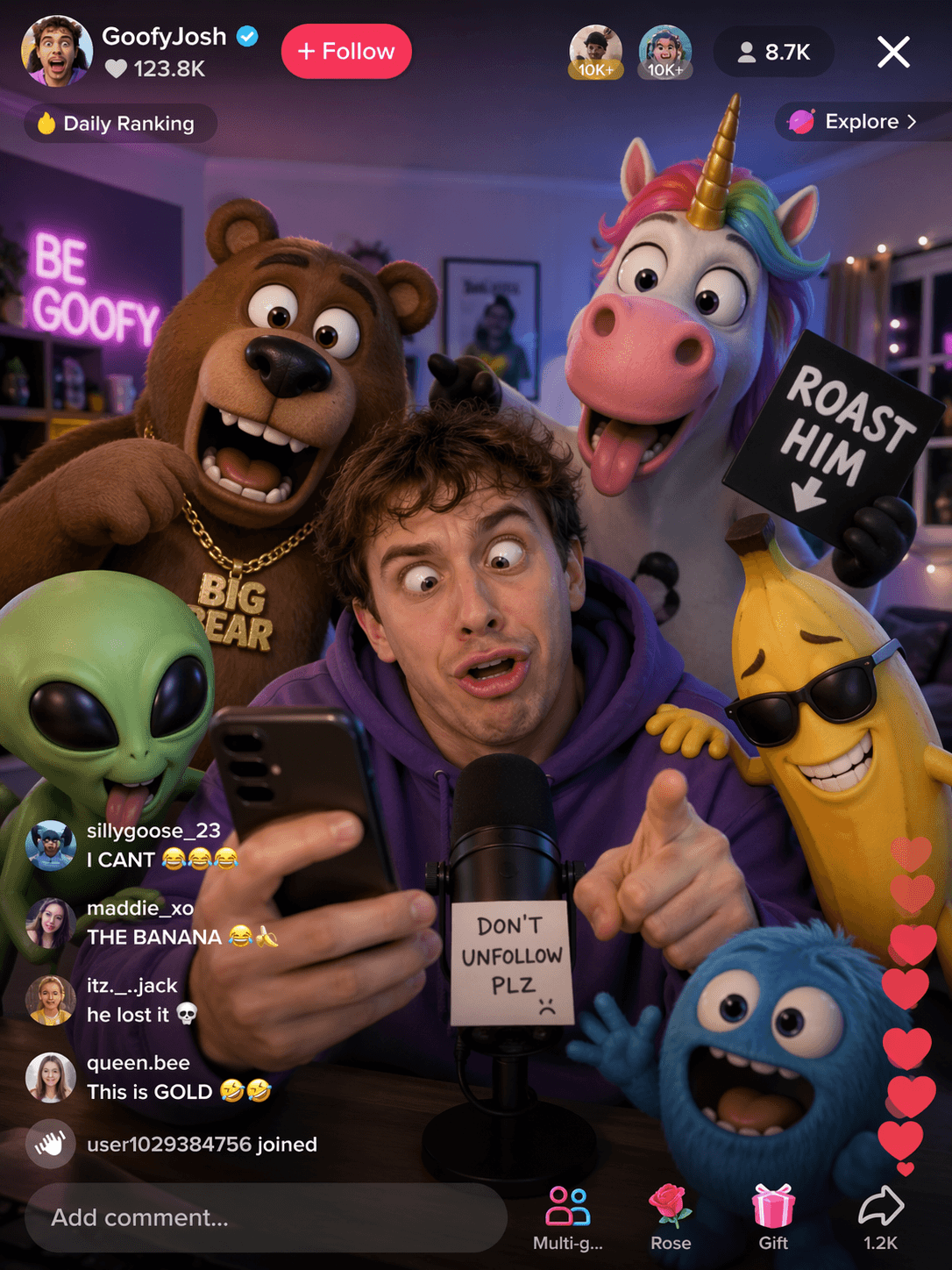
Ways to use GPT Image 2
Product advertising and ecommerce
Explore product page images, launch banners, retail scenes, beauty campaign concepts, and packaging ideas. Describe the product features and wording that need particular attention.
Marketing and social content
Create concepts for campaign graphics, social posts, event posters, ad creatives, and seasonal variations. Keep your palette, tone, and layout direction clear in each brief.
Creative direction and prototyping
Develop storyboard frames, landing page concepts, art direction boards, editorial mockups, and visual studies before moving into your final production tools.
GPT Image 2, Midjourney, and GPT-4o Image
GPT Image 2 and Midjourney
Compare models against your own brief. Try the same subject, visual style, and composition, then review which result fits the look and purpose of your project.
GPT Image 2 and GPT-4o Image
Compare how each model interprets your instructions and handles the details you care about, such as labels, product shapes, and reference images. Use matched prompts to make the comparison useful.
Create in one Veemo AI workspace
Generate and edit from the same workspace, adjust the settings shown in the form, and review the credit total before submitting your request.
Model comparison guide
Choose a model for your next project
Explore the comparison of GPT Image 2, Midjourney, and GPT-4o Image for prompt following, text rendering, image editing, and product visuals. Use the examples to decide what to test for your own brief.
Read the comparison articleHow to use GPT Image 2
- Choose text-to-image for a new visual or image editing to work from an uploaded image.
- Write a prompt describing the subject, composition, style, and text you want.
- Choose an aspect ratio and resolution for a social post, poster, product image, or banner.
- Generate the image, review the result, and refine your instructions for the next version.
- Check text and visual details before taking the image into your final design workflow.
Settings you can choose
- Creation mode: generate a new image from text or edit an uploaded image.
- Prompt: describe what to create, change, or preserve.
- Aspect ratio: automatic, 1:1, 16:9, 9:16, 4:3, or 3:4.
- Resolution: 1K, 2K, or 4K.
- Reference images: add images in editing mode to guide the result.
Plan your GPT Image 2 workflow
What is GPT Image 2?
GPT Image 2 is an AI image generator and image editor available on Veemo AI. Start from a written description or upload reference images to explore a new version of an existing visual.
Use a clear brief for product ads, posters, branded scenes, packaging mockups, or visuals with text. Review the generated wording and image details before treating an output as final.
How to start on Veemo AI
Choose text-to-image to create a new image, or image editing to work with an uploaded picture.
Enter your prompt, select the aspect ratio and resolution, and check the displayed credit total before generating. Refine your next request based on the parts of the result you want to keep or change.
Match the model to your brief
Try GPT Image 2 for product imagery, signage concepts, labels, packaging studies, ad ideas, and photorealistic scenes.
If you are exploring several styles or models, compare them with the same brief. Choose the output that fits your project rather than relying on a general ranking.